How to set up Kitbag Calendar
Kitbag Calendar keeps your diary, texts customers a confirmation and a reminder, and offers cancelled slots to your waitlist.
#Download and install
- Go to dreweryco.uk/downloads and press Download under Kitbag Calendar.
- Open the file you downloaded (Kitbag-Calendar-Setup) and follow the installer. It takes under a minute.
- If Windows shows "Windows protected your PC", press More info, then Run anyway. This appears for new apps that Windows hasn't seen many times yet.
- Kitbag Calendar opens when it's installed, and adds a shortcut to your Start menu and desktop.
You need a Windows 10 or 11 PC. Your data stays on that computer.
#Add your licence key
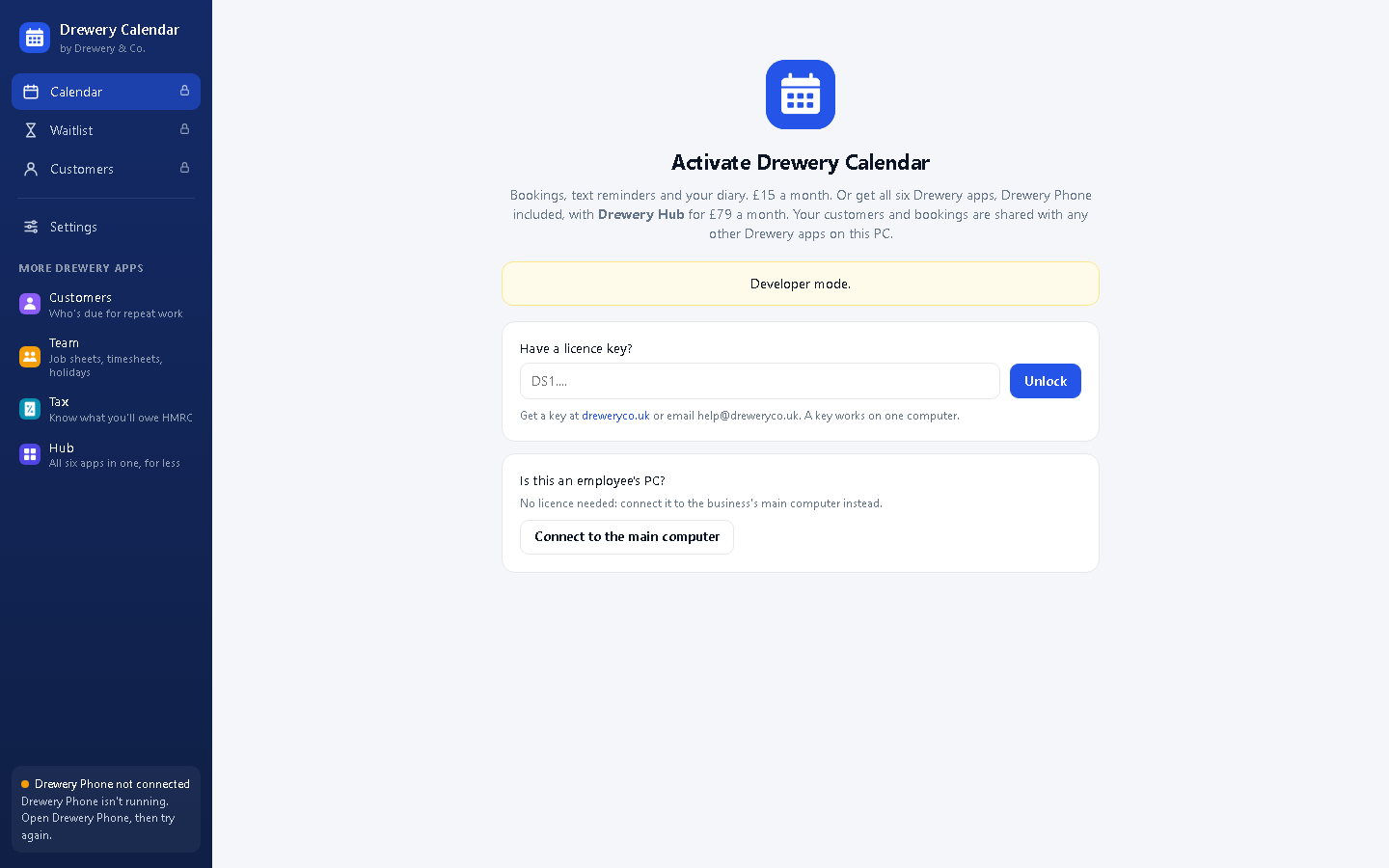
Kitbag Calendar opens on the Activate screen until it has a key.
- Don't have a key yet? Ask for a free 14-day trial, or request a licence. Your key arrives by email.
- Copy the whole key from the email (it starts with DS1.) and paste it into Have a licence key?
- Press Unlock. The computer needs to be online the first time.
Each key works on one computer. Your team can still use it from their own PCs and phones: see Team access. When you renew, the key stays the same and the app updates itself.
#Fill in your business details
- Open Settings (bottom of the menu on the left).
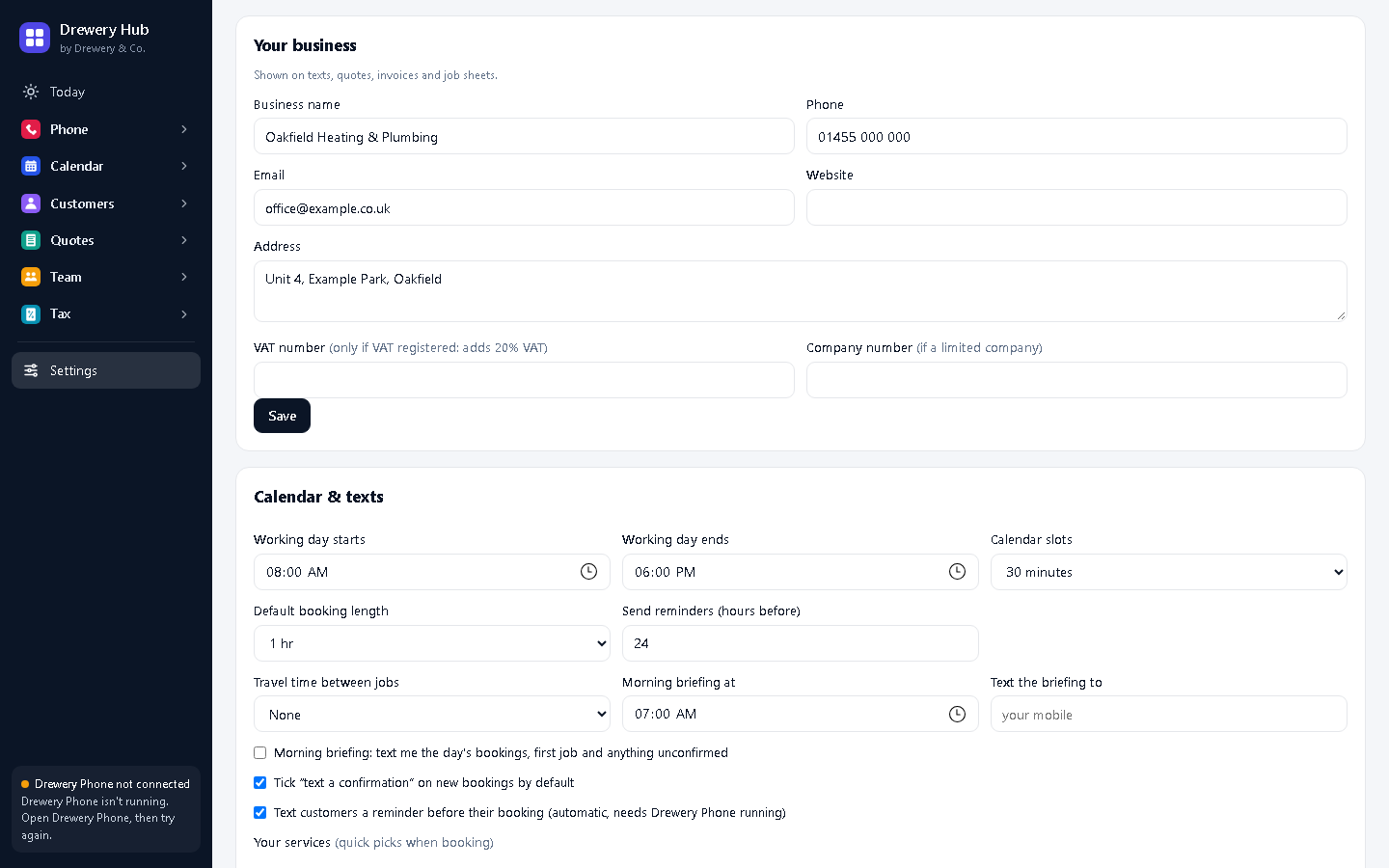
- Under Your business, add your business name, phone, email, address and website. Add your VAT number and company number only if you have them.
- Press Save.
These go on your texts, quotes and invoices, and every Kitbag app on the computer shares them.
#Set your working day and reminders
In Settings → Calendar & texts:
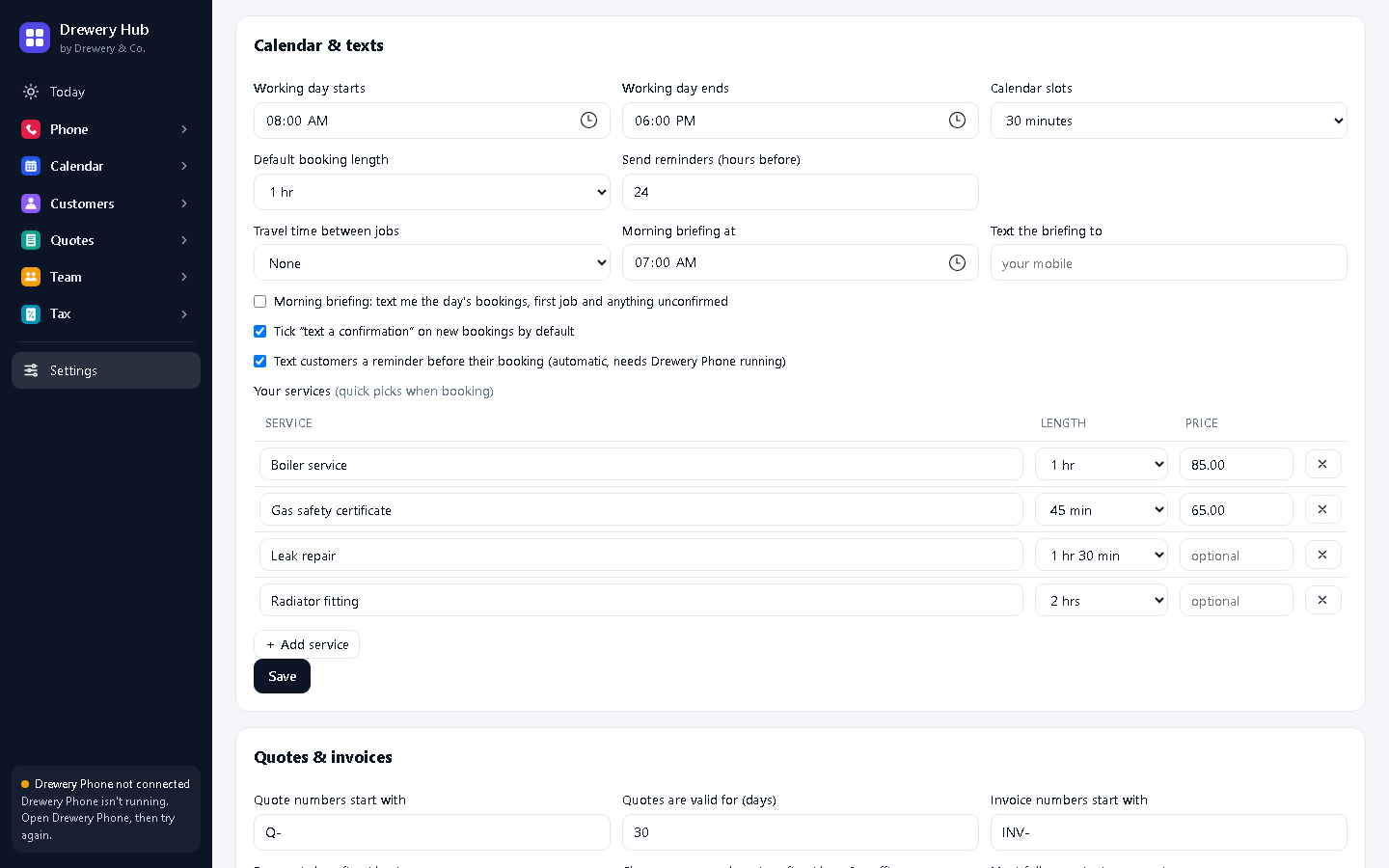
- Working day starts / ends and Calendar slots: the hours your diary shows, and how finely.
- Default booking length and Travel time between jobs: so the diary doesn't double-book you across town.
- Send reminders (hours before): 24 is a good start. Tick Text customers a reminder before their booking.
- Morning briefing: tick it and add your mobile to get the day's jobs by text each morning.
Press Save.
#Add your services
Under Your services, add the jobs you do most, with how long they take and (optionally) a price, for example Boiler service, 1 hr, £85. They become quick picks when you book. Press Save.
#Connect Kitbag Phone for texts
Booking confirmations and reminders are sent as texts through Kitbag Phone, from your business number. Install and set up Kitbag Phone on the same computer (see the Kitbag Phone guide) and keep it running: it sits by the clock.
The bottom-left of the window shows Kitbag Phone connected when it's working. Without Kitbag Phone, everything else still works, it just doesn't text.
#Make your first booking
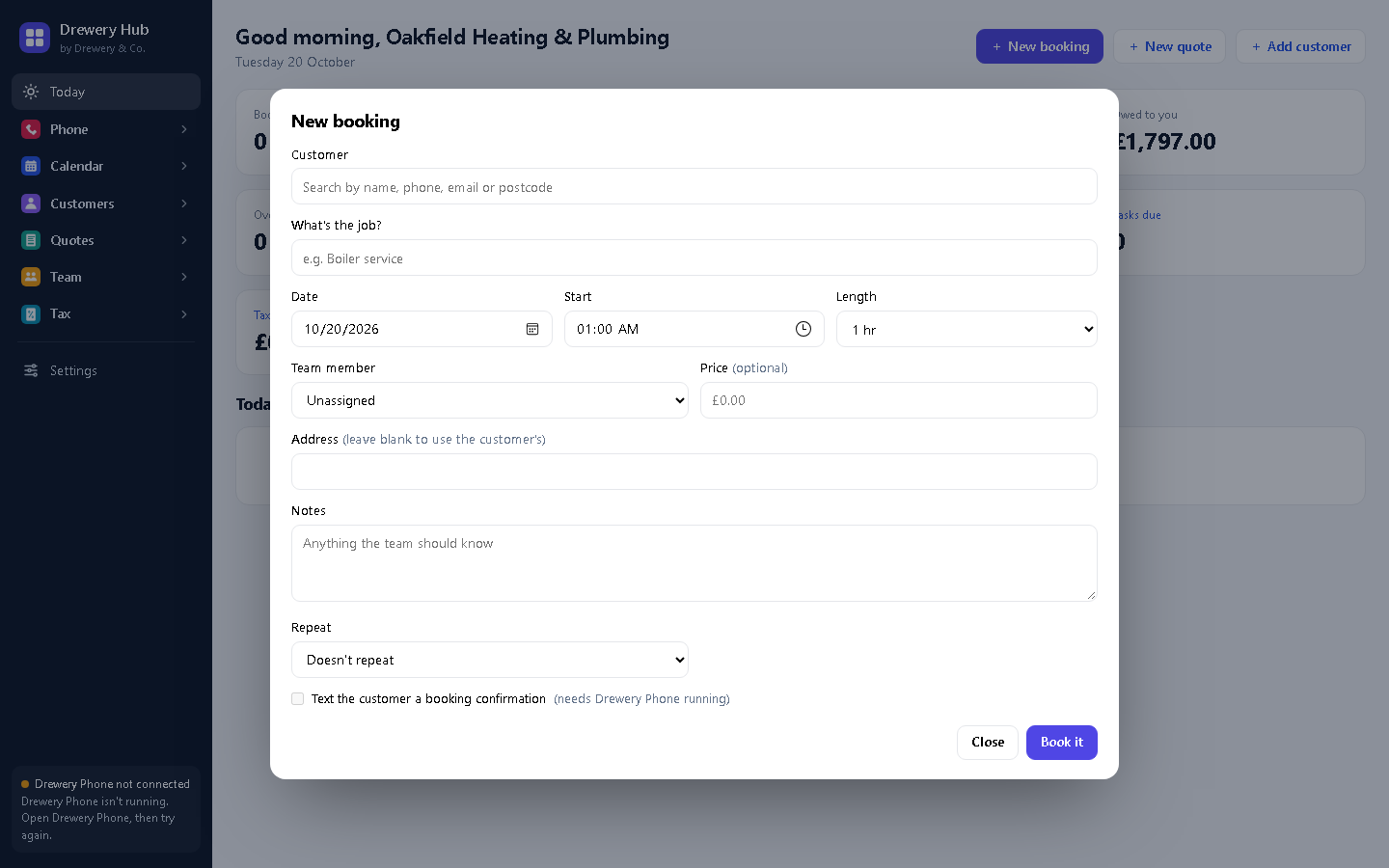
- Press + New booking (on Today or the Calendar).
- Pick or add the customer, choose the service, date and time.
- Leave Text a confirmation ticked to text them straight away, then press Book.
#Find your way round the diary
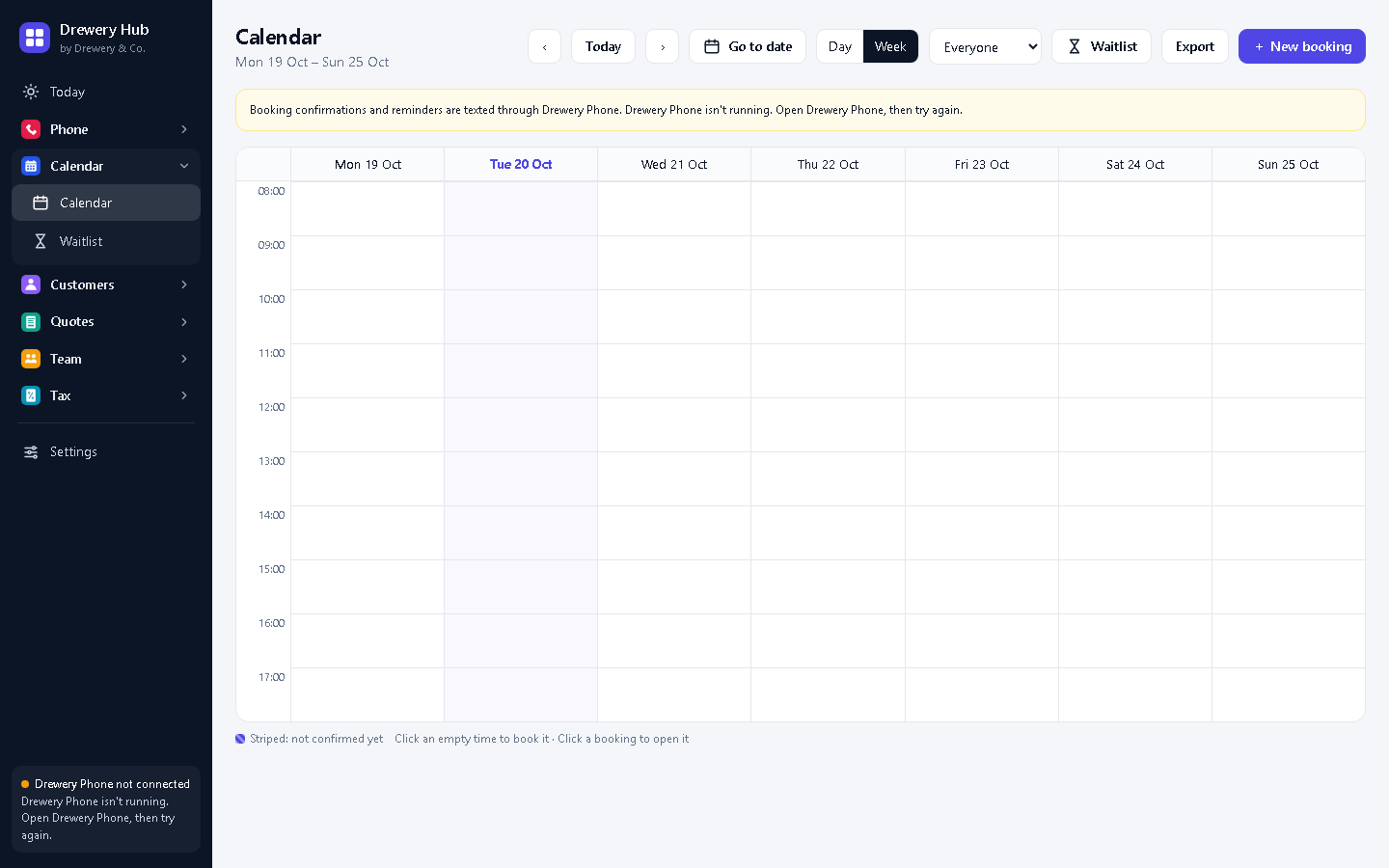
The Calendar shows your day or week. Click a booking to change its time, give it to someone, or mark it on the way, done or no-show.
#Use the waitlist
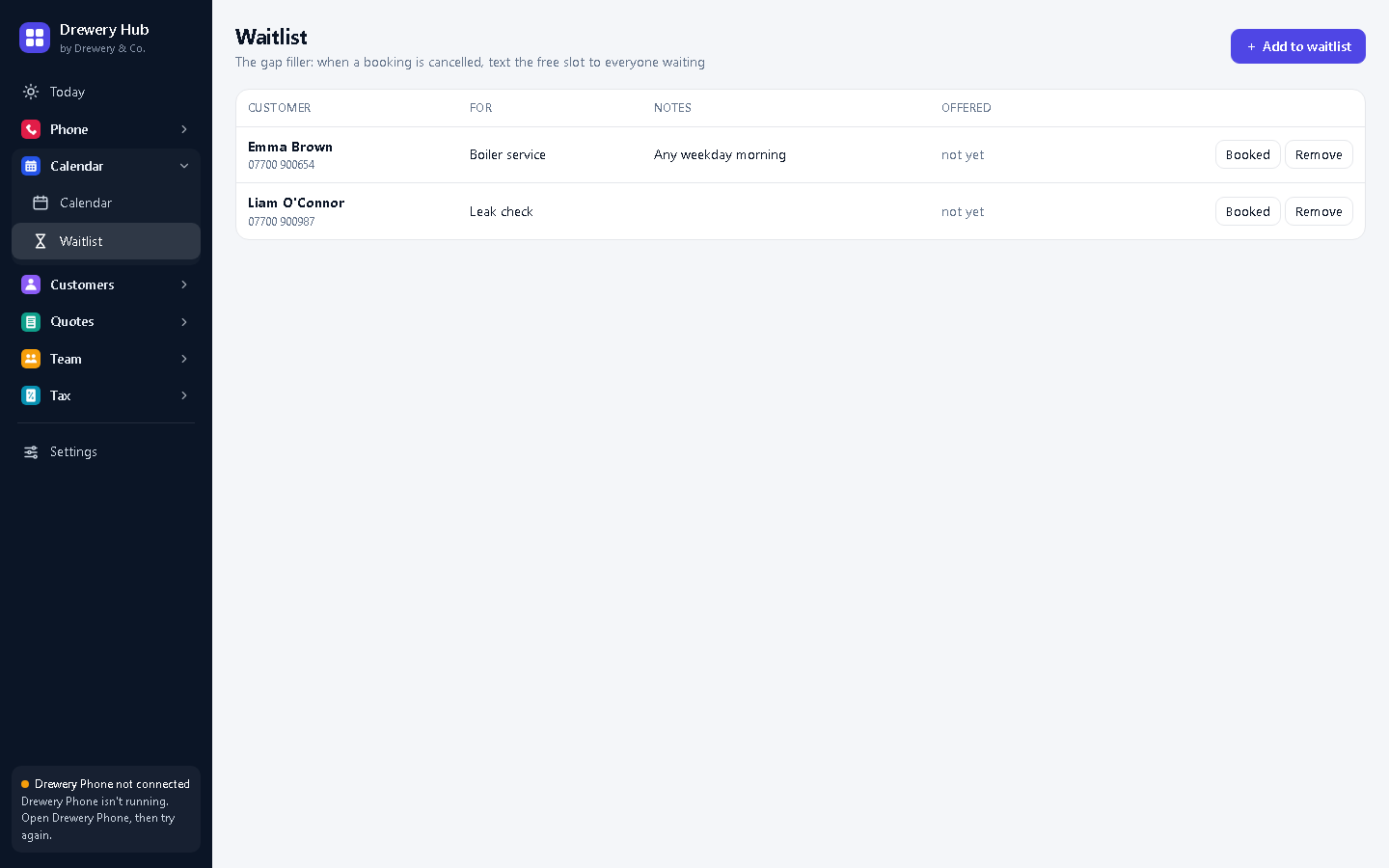
Customers who want an earlier slot go on the Waitlist. When a booking is cancelled, Kitbag Calendar offers the gap to them by text, so the slot doesn't go empty.
Need a hand?
Email help@dreweryco.uk or use the contact form, and we'll talk you through it.
 All six apps. One window.