
How to set up Kitbag Customers
Kitbag Customers keeps every customer's details and history in one place, and tells you who's due for repeat work.
#Download and install
- Go to dreweryco.uk/downloads and press Download under Kitbag Customers.
- Open the file you downloaded (Kitbag-Customers-Setup) and follow the installer. It takes under a minute.
- If Windows shows "Windows protected your PC", press More info, then Run anyway. This appears for new apps that Windows hasn't seen many times yet.
- Kitbag Customers opens when it's installed, and adds a shortcut to your Start menu and desktop.
You need a Windows 10 or 11 PC. Your data stays on that computer.
#Add your licence key
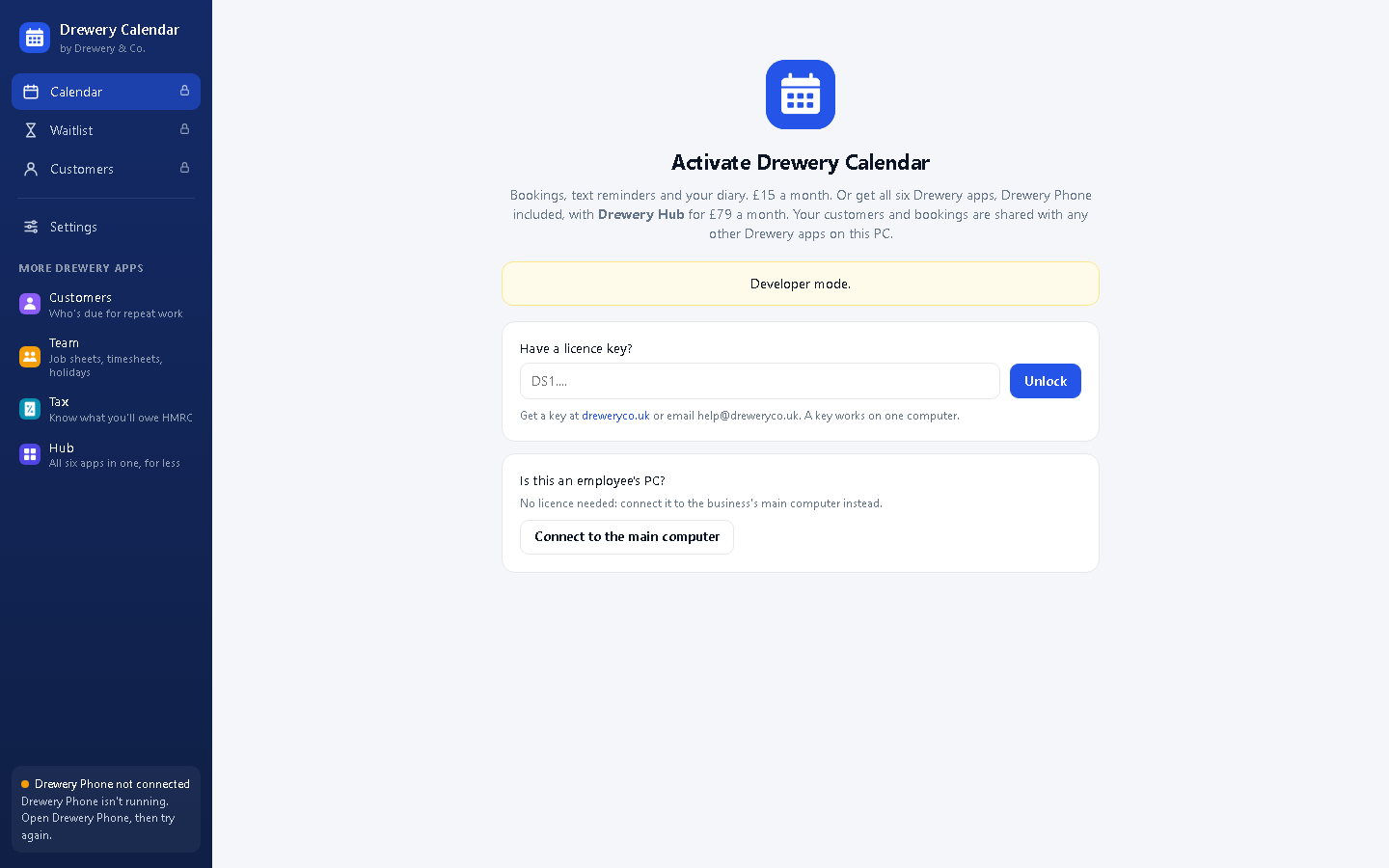
Kitbag Customers opens on the Activate screen until it has a key.
- Don't have a key yet? Ask for a free 14-day trial, or request a licence. Your key arrives by email.
- Copy the whole key from the email (it starts with DS1.) and paste it into Have a licence key?
- Press Unlock. The computer needs to be online the first time.
Each key works on one computer. Your team can still use it from their own PCs and phones: see Team access. When you renew, the key stays the same and the app updates itself.
#Fill in your business details
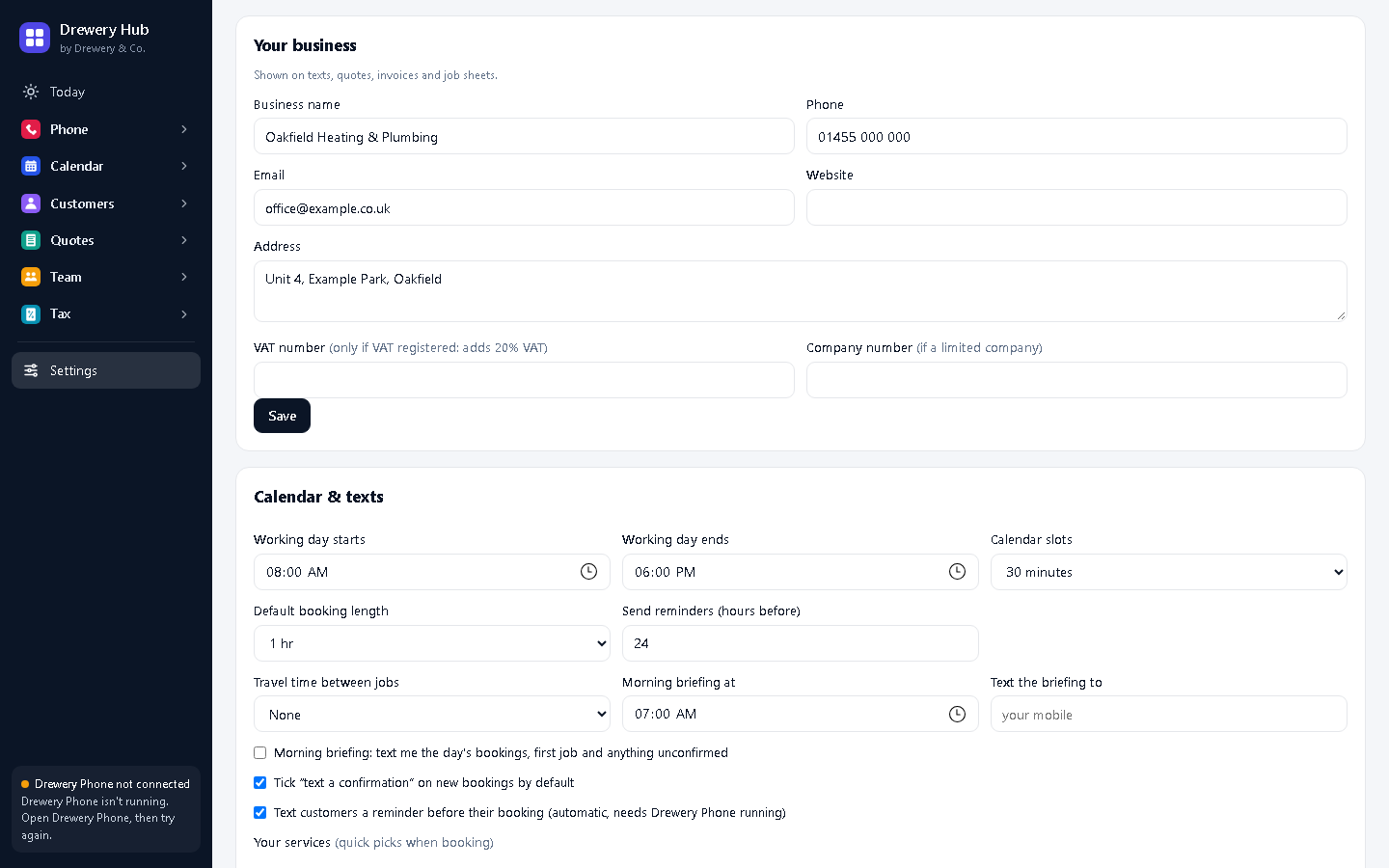
- Open Settings (bottom of the menu on the left).
- Under Your business, add your business name, phone, email, address and website. Add your VAT number and company number only if you have them.
- Press Save.
These go on your texts, quotes and invoices, and every Kitbag app on the computer shares them.
#Bring in your customers
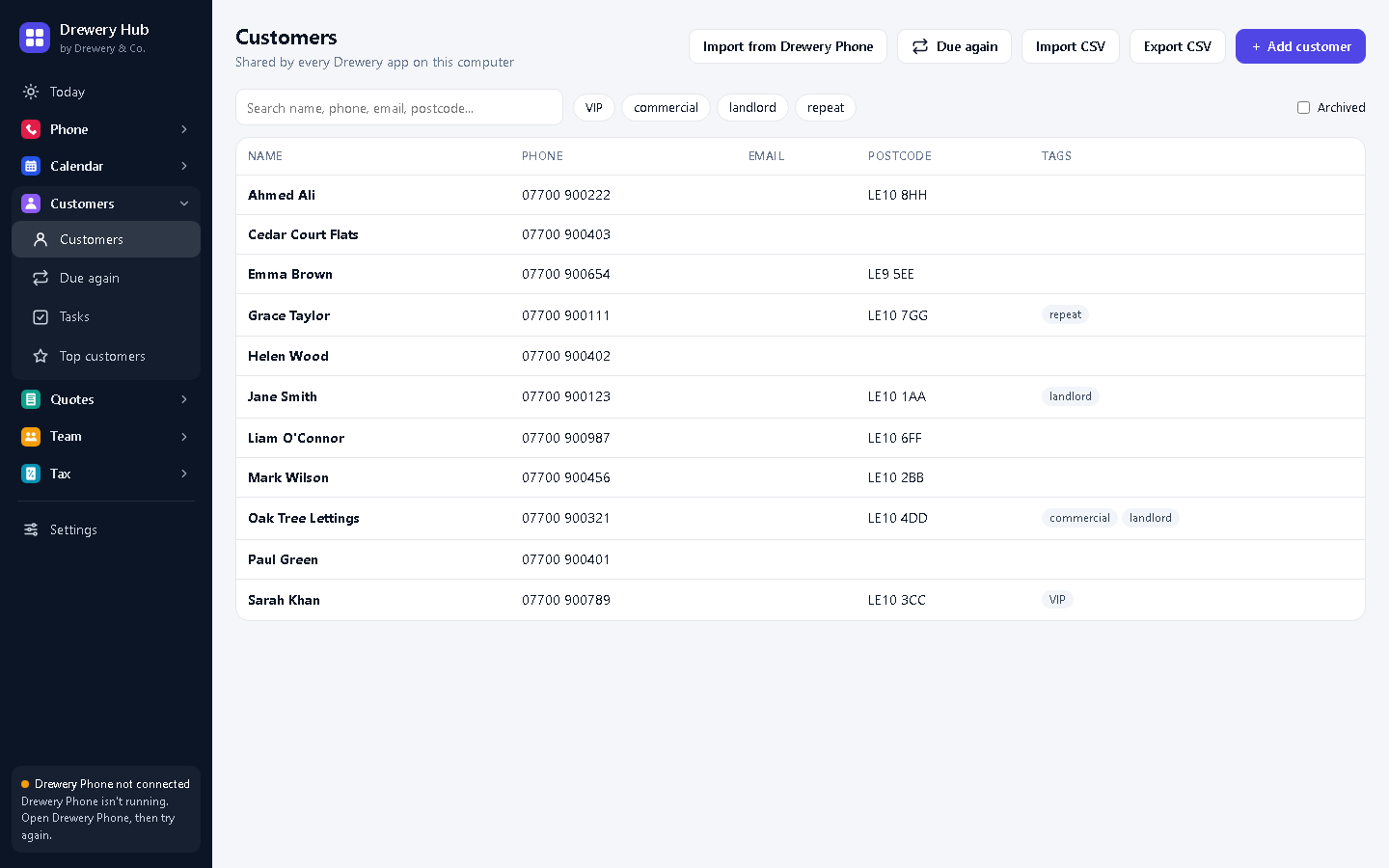
Open Customers. If you use Kitbag Phone, press Import from Kitbag Phone to bring in everyone who has called or texted. You can also press Import CSV to bring in a spreadsheet, or add customers one by one.
#Add a customer
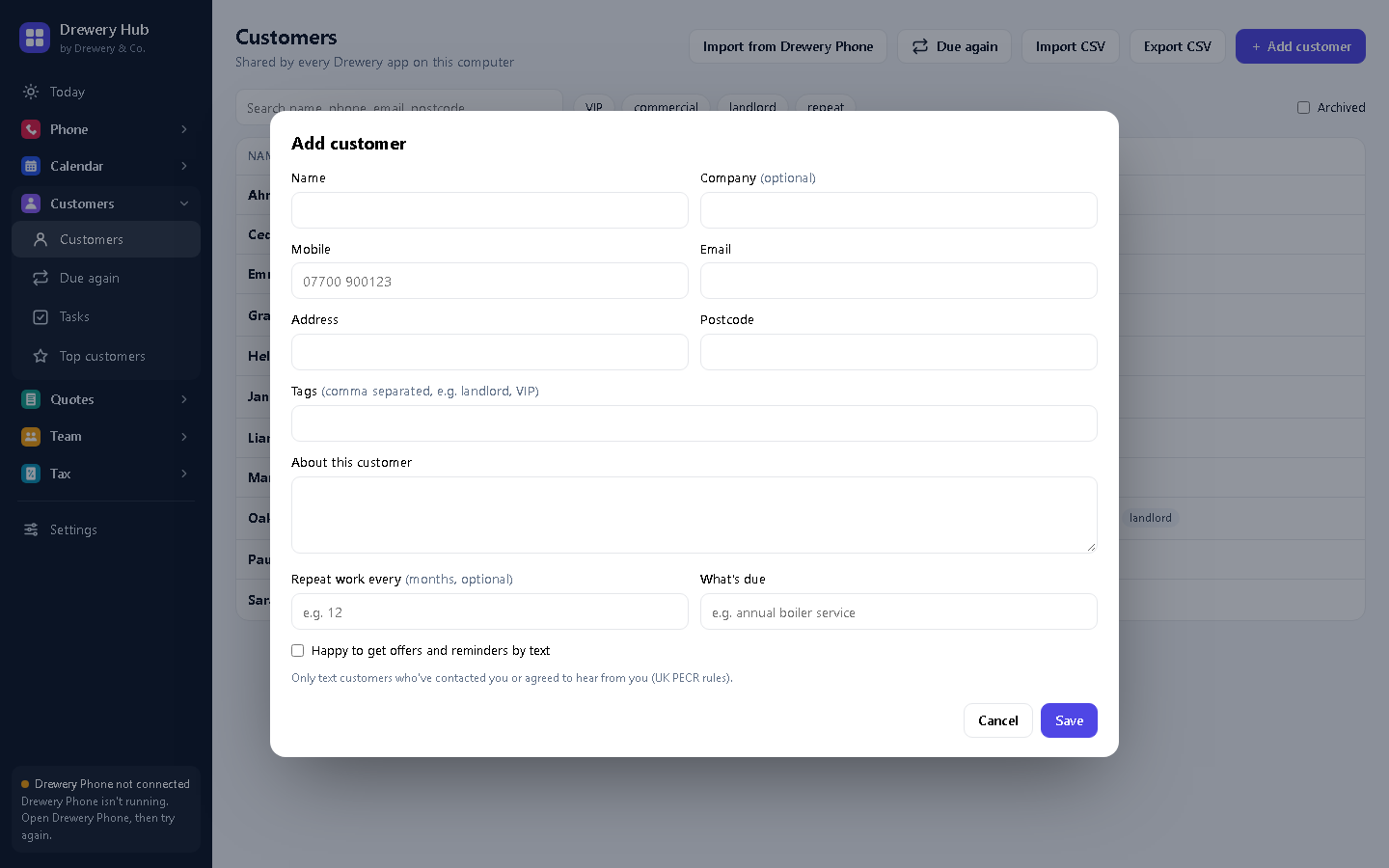
- Press + Add customer.
- Fill in their name, mobile, email, address and postcode.
- Only tick Happy to get offers and reminders by text if they've agreed to it: the law needs their permission for marketing texts.
- Save.
#See who's due for repeat work
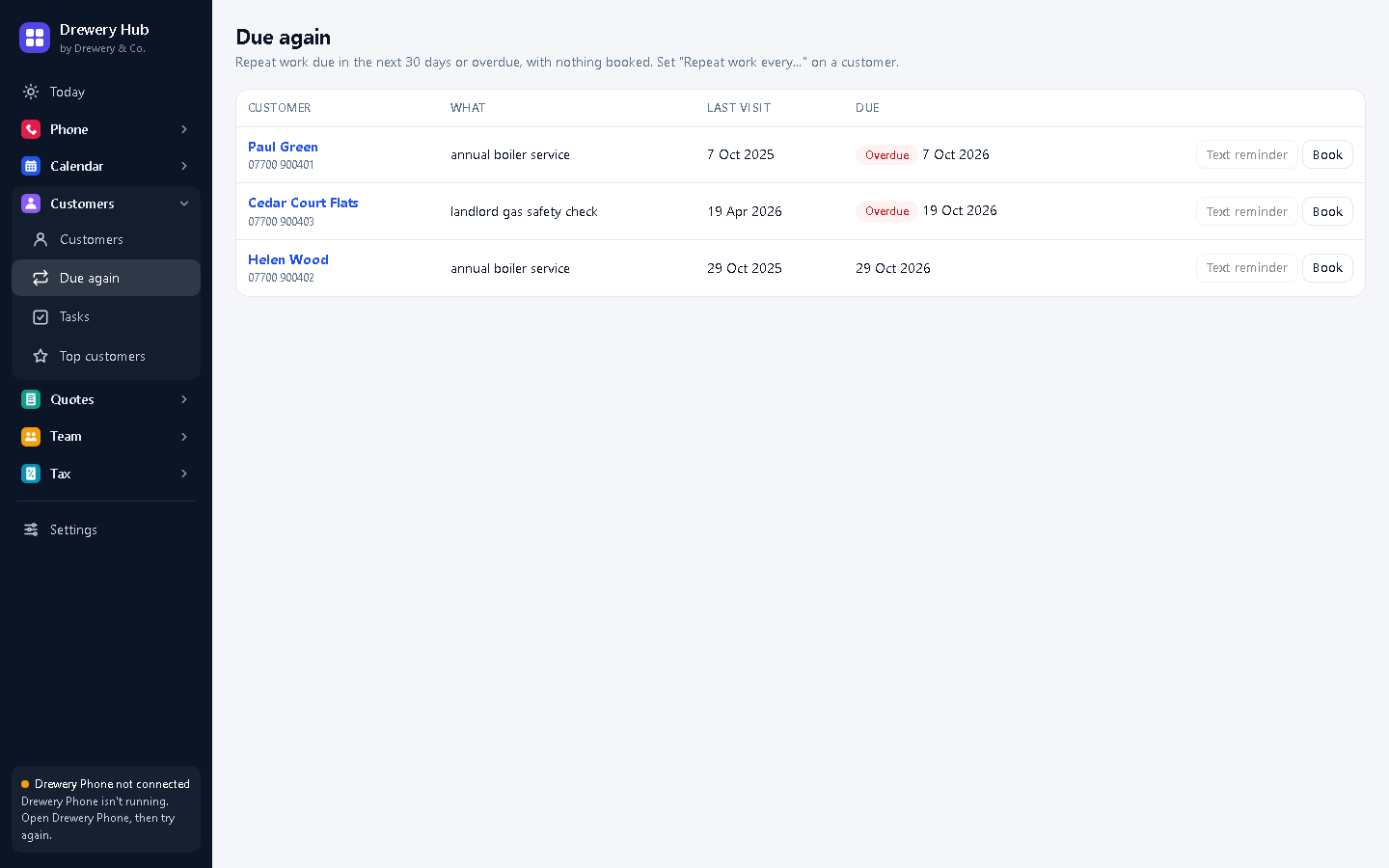
Due again lists customers who are due a service, check or repeat job, based on their past work. Give them a call or text before they ring someone else.
#Tasks and top customers
Use Tasks for anything you need to remember, like call-backs. Top customers shows who you've earned the most from.
Need a hand?
Email help@dreweryco.uk or use the contact form, and we'll talk you through it.
 All six apps. One window.