How to set up Kitbag Phone
Kitbag Phone gives your business a phone number that texts back anyone whose call you miss. It runs on your PC and sends texts through your own Twilio account, so you pay Twilio directly for calls and texts.
#Download and install
- Go to dreweryco.uk/downloads and press Download under Kitbag Phone.
- Open the file you downloaded (Kitbag-Phone-Setup) and follow the installer. It takes under a minute.
- If Windows shows "Windows protected your PC", press More info, then Run anyway. This appears for new apps that Windows hasn't seen many times yet.
- Kitbag Phone opens when it's installed, and adds a shortcut to your Start menu and desktop.
You need a Windows 10 or 11 PC. Your data stays on that computer.
#Step 1 of the setup: your licence key
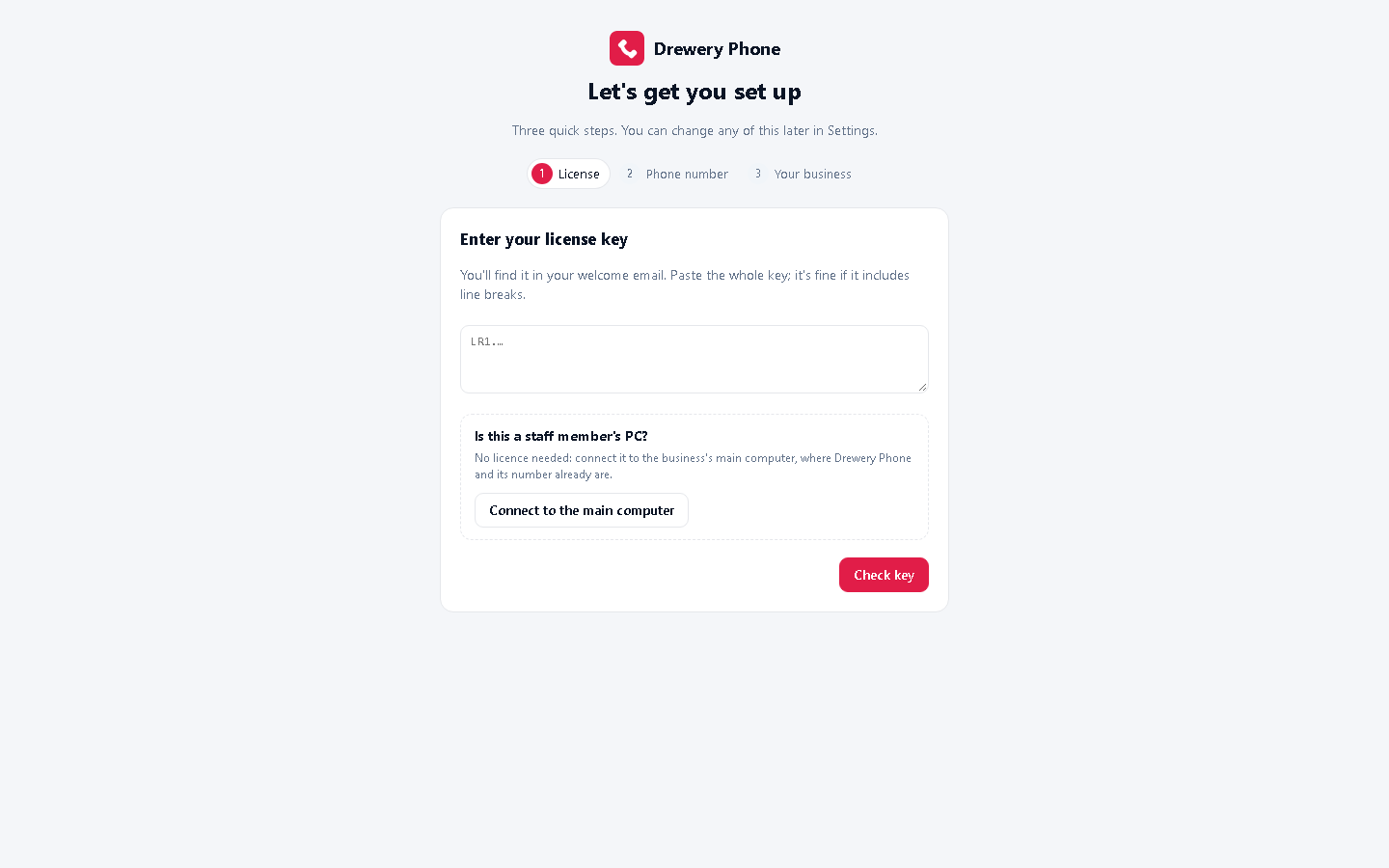
The setup opens by itself the first time. Paste your licence key (it starts with LR1.) and press Check key, then Continue.
A Kitbag Hub key works here too. On a staff member's PC, choose Connect to the main computer instead: no key needed (see Team access).
#Get a phone number from Twilio
Twilio is the phone company Kitbag Phone uses. It's pay-as-you-go: a monthly charge for the number, plus a small amount for each call and text (see Twilio's UK prices).
- Sign up at twilio.com/try-twilio and verify your email and mobile.
- In the Twilio Console, go to Phone Numbers → Manage → Buy a number. Choose United Kingdom, tick Voice and SMS, and pick a mobile number (starting 07). UK landline numbers usually can't send texts.
- For UK numbers, Twilio asks for your business details and address (a UK telecoms rule) before the number goes live. Fill this in: approval can take a day or two.
- Add some credit to your Twilio account (Billing), so it can send texts once you're live.
#Copy your Account SID and Auth Token
- Open the Twilio Console home page.
- Under Account Info, copy the Account SID (it starts with AC) and the Auth Token (press Show first).
Treat the Auth Token like a password: don't email it or share it. Kitbag Phone stores it encrypted on your PC.
#Give Twilio a way to reach your PC
When someone calls your number, Twilio needs to tell Kitbag Phone on your PC. Your PC needs a public web address for that. The simplest free way is ngrok:
- Sign up at ngrok.com and download ngrok for Windows.
- In the ngrok dashboard, copy your authtoken, then in a Command Prompt run:
ngrok config add-authtoken YOUR-AUTHTOKEN - In the ngrok dashboard, go to Domains and claim your free fixed domain (it looks like something.ngrok-free.app).
- Start it with:
ngrok http --url=YOUR-DOMAIN.ngrok-free.app 8000
(on older versions of ngrok, use--domain=instead of--url=). - Your public web address is https://YOUR-DOMAIN.ngrok-free.app.
#Step 2 of the setup: connect your number
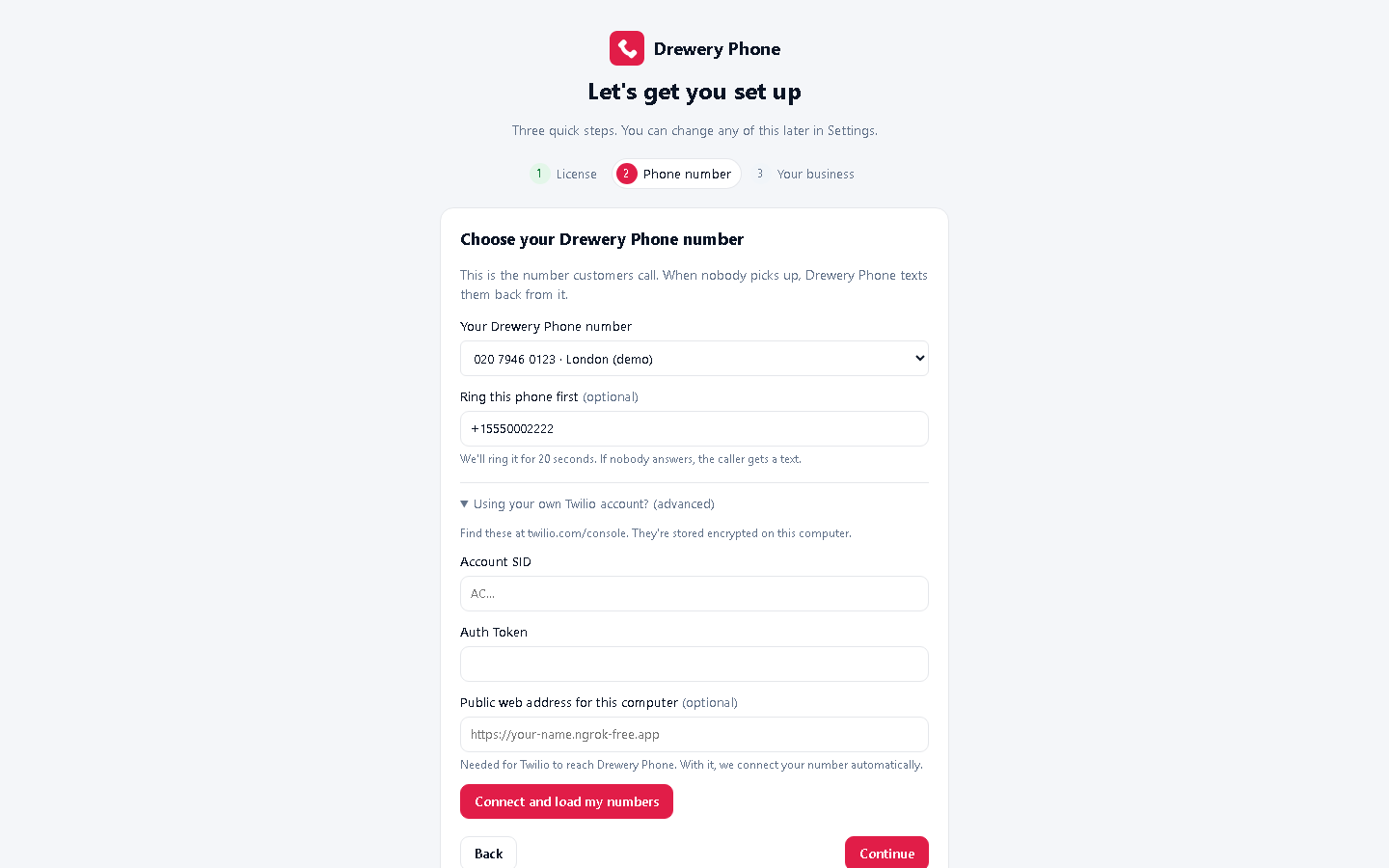
- On the Choose your Kitbag Phone number step, open Using your own Twilio account? (advanced).
- Paste your Account SID, Auth Token and your public web address.
- Press Connect and load my numbers, then choose your new number. Kitbag Phone sets up the number in Twilio for you.
- Optional: under Ring this phone first, enter your mobile. Calls ring it for 20 seconds; if nobody answers, the caller gets a text.
- Press Continue.
#Choose how customers will reach your number
Option 1: use your new number as your business number. Put it on your van, website, Google profile and cards. Fill in Ring this phone first with your mobile, so calls still come to you.
Option 2: keep your existing mobile number. Divert calls you don't answer to your Kitbag Phone number. On most UK networks, dial **61*YOUR-DREWERY-NUMBER# from your mobile and press call (check with your network if it doesn't work). Leave Ring this phone first empty in this case, or calls would loop back to you.
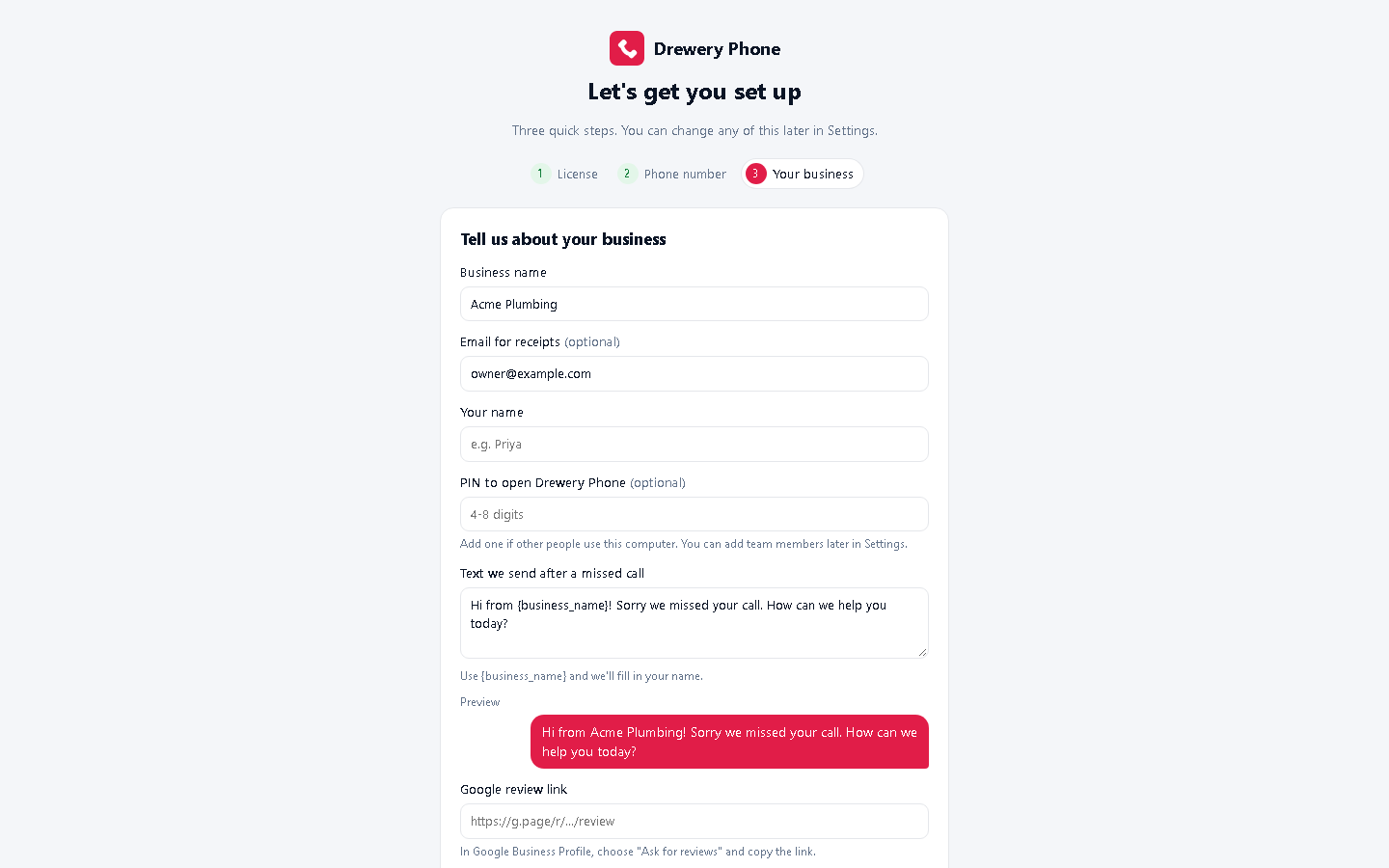
#Step 3 of the setup: your business and the missed-call text
- Fill in your Business name and Your name. Add a PIN if other people use this PC.
- Write the Text we send after a missed call. Use
{business_name}and it fills in your name. The preview shows what customers see. - Paste your Google review link (in Google Business Profile, choose Ask for reviews and copy the link) so you can send review requests in one tap.
- Press Finish setup.
#Test it
- From a different phone, ring your Kitbag Phone number and let it ring out.
- Within a few seconds, that phone gets your missed-call text.
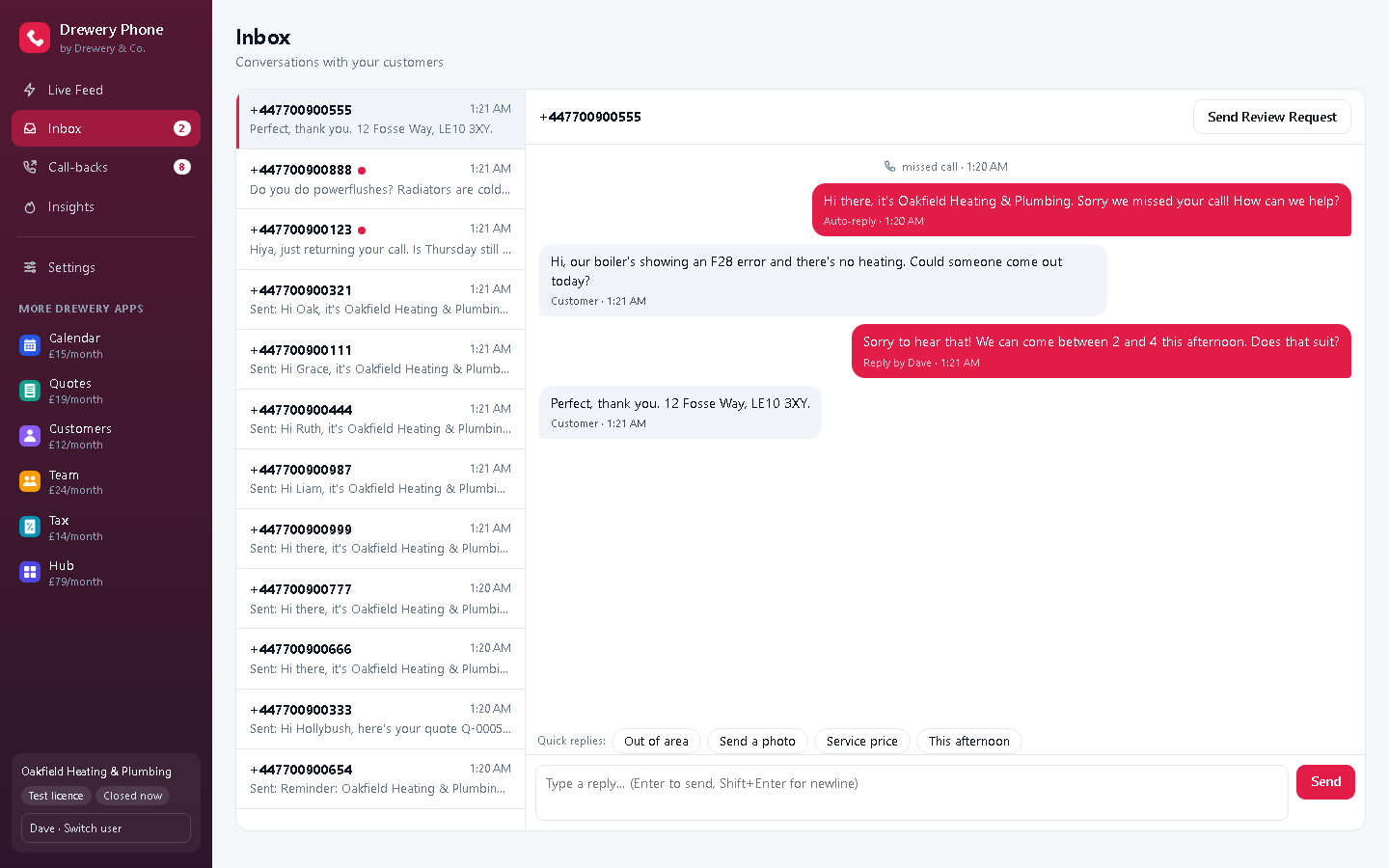
- Reply to the text: the reply appears in Kitbag Phone's Inbox, and you can answer from your PC.
Kitbag Phone keeps running by the clock (in the system tray) when you close the window, so it catches calls all day.
#Let your team use it
In Kitbag Phone's Settings, add team members with their own PINs. Staff can also use it from their own PCs and phones over your Wi-Fi: see Team access.
Need a hand?
Email help@dreweryco.uk or use the contact form, and we'll talk you through it.
 All six apps. One window.