
← All setup guides

Setup guide
How to set up Vanity Pay
Vanity Pay puts a Pay by card link on your invoices, paid into your own Stripe account. It's an add-on: set it up from Vanity Quotes or Hub, on the main computer.
#Add your Vanity Pay key
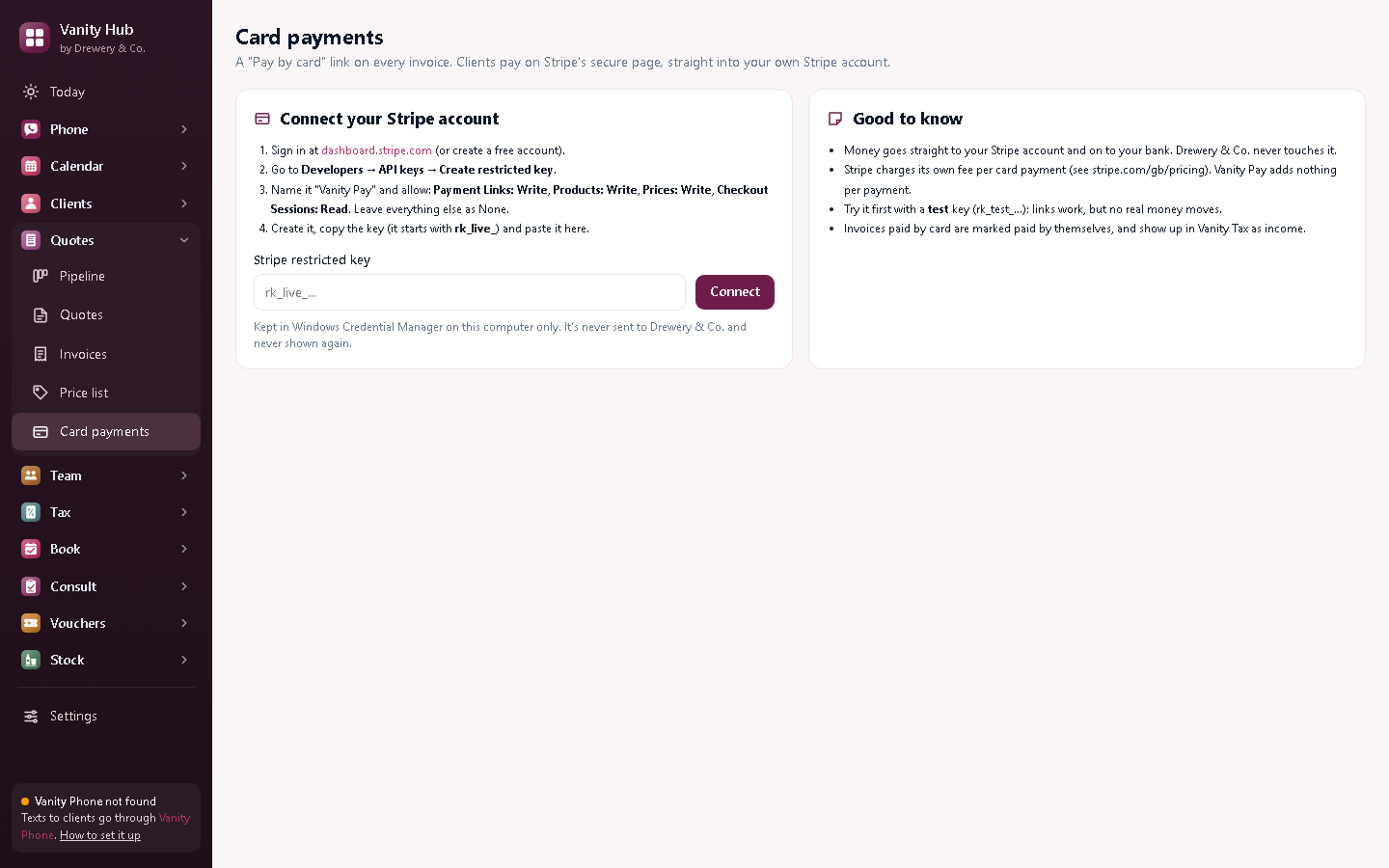
In Vanity Quotes (or Hub), open Settings, paste your Vanity Pay key into Add a licence key and press Add key. Card payments appears in the menu.
#Make a Stripe key for Vanity Pay
- Sign in at dashboard.stripe.com, or create a free account (you'll need to be 18 or over).
- Go to Developers → API keys and press Create restricted key.
- Name it Vanity Pay, and set Payment Links, Products and Prices to Write, and Checkout Sessions to Read. Leave the rest as None.
- Create it and copy the key. It starts with rk_live_ (or rk_test_ in test mode).
A restricted key can only do what Vanity Pay needs: it can't move money out of your account.
#Connect it
Open Card payments, paste the key and press Connect. It's checked with Stripe, then kept in Windows Credential Manager on this computer. It's never sent to Drewery & Co. and never shown again.
#Try a test payment
- Connect a test key (rk_test_) first.
- Text yourself an invoice. It arrives with a Pay by card link.
- Pay it with Stripe's test card 4242 4242 4242 4242, any future date and any 3 digits.
- Within about 5 minutes the invoice is marked paid by card. Then disconnect and connect your live key.
Need a hand?
Email help@dreweryco.uk or use the contact form, and we'll talk you through it.