
← All setup guides

Setup guide
How to set up Vanity Stock
Vanity Stock keeps your retail shelf and back bar in one list, warns you when something's running low, and writes your reorder list. It's an add-on for Vanity Calendar, Clients, Quotes, Team or Hub.
#Add your Vanity Stock key
In the Vanity app you use, open Settings, paste your Vanity Stock key (it starts with VN1.) into Add a licence key and press Add key. Stock appears in the menu.
#Add your products
- Open Stock and press Add a product.
- Choose Retail for things you sell, or Back bar for colour and products you use on clients.
- Enter how many you have now, the level to warn you at, the cost and (for retail) the price, and the supplier.
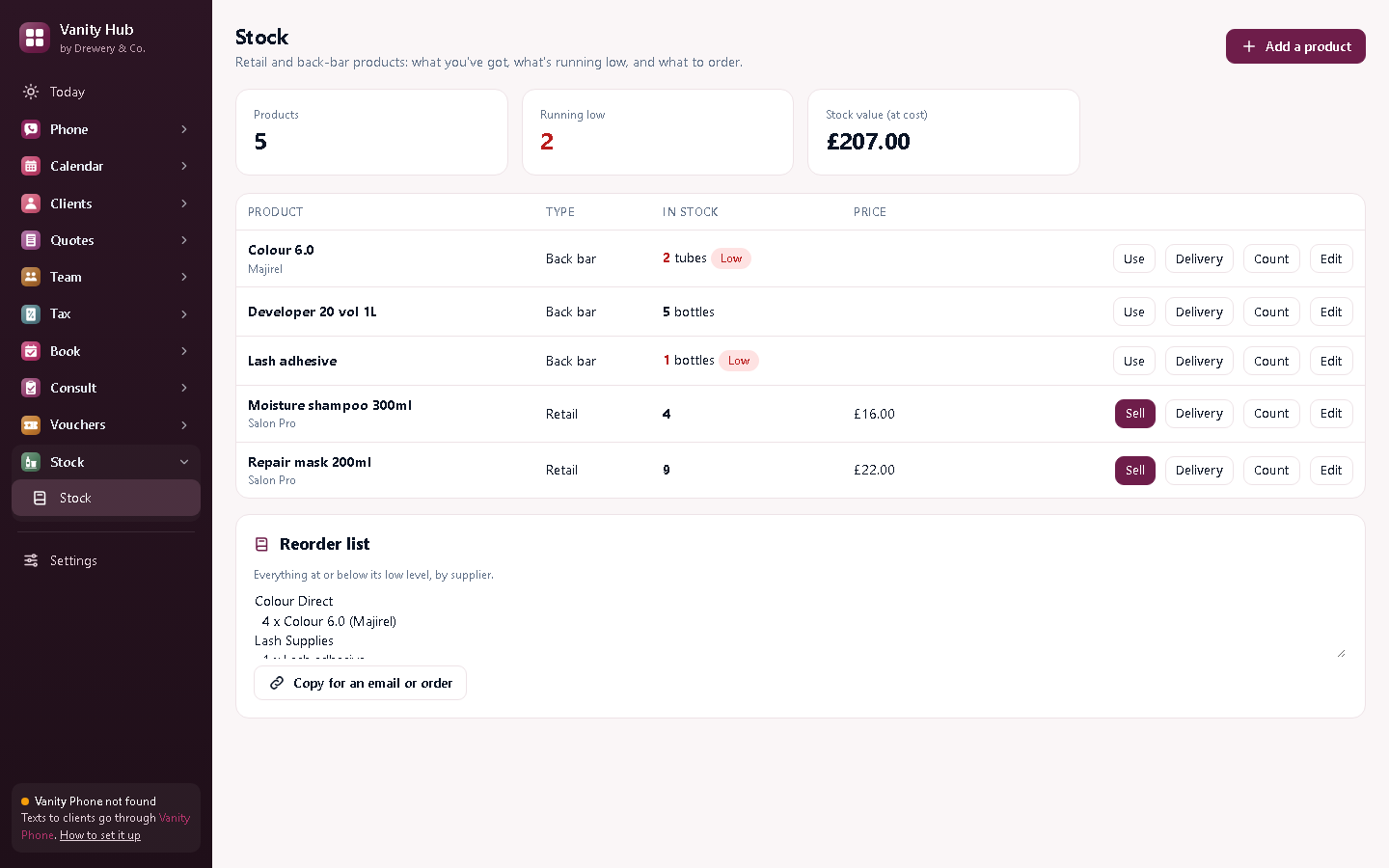
#Sales, products used and deliveries
- Sell (retail): the takings go into your income in Vanity Tax.
- Use (back bar): take off what you used.
- Delivery: add what arrived. Tick the box to add the cost to your expenses.
- Count: after a stock check, enter what's really on the shelf.
#Send your reorder list
Anything at or below its low level appears in the Reorder list, grouped by supplier, with how many to order. Press Copy and paste it into an email or your wholesaler's order form.
Need a hand?
Email help@dreweryco.uk or use the contact form, and we'll talk you through it.