

How to set up Vanity Quotes
Vanity Quotes builds your quotes from your own price list, shows your profit on every line, chases clients who go quiet, and turns accepted quotes into invoices.
#Download and install
- Go to dreweryco.uk/downloads and press Download under Vanity Quotes.
- Open the file you downloaded (Vanity-Quotes-Setup) and follow the installer. It takes under a minute.
- If Windows shows "Windows protected your PC", press More info, then Run anyway. This appears for new apps that Windows hasn't seen many times yet.
- Vanity Quotes opens when it's installed, and adds a shortcut to your Start menu and desktop.
You need a Windows 10 or 11 PC. Your data stays on that computer.
#Add your licence key
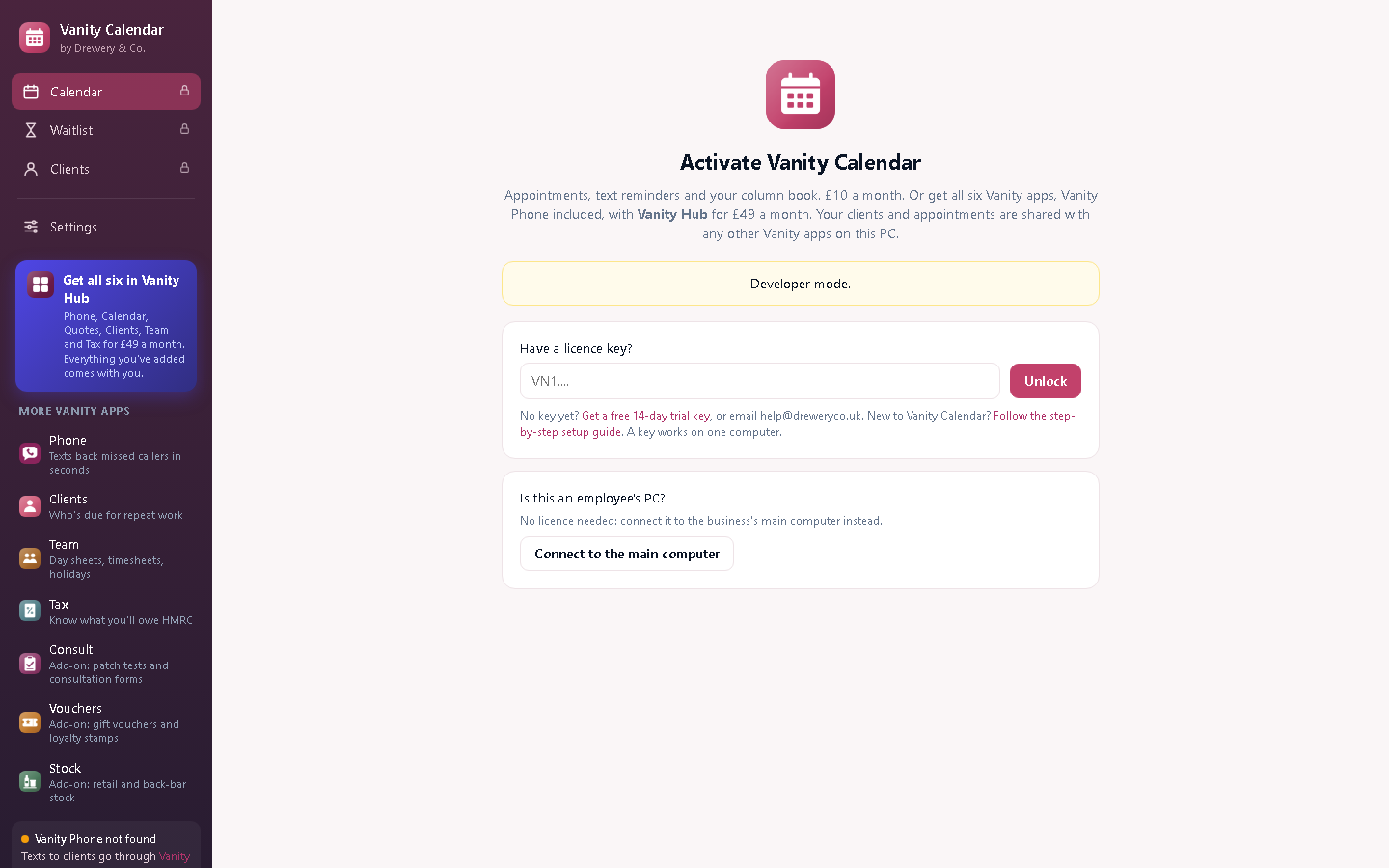
Vanity Quotes opens on the Activate screen until it has a key.
- Don't have a key yet? Ask for a free 14-day trial, or request a licence. Your key arrives by email.
- Copy the whole key from the email (it starts with VN1.) and paste it into Have a licence key?
- Press Unlock. The computer needs to be online the first time.
Each key works on one computer. Your team can still use it from their own PCs and phones: see Team access. When you renew, the key stays the same and the app updates itself.
#Fill in your business details
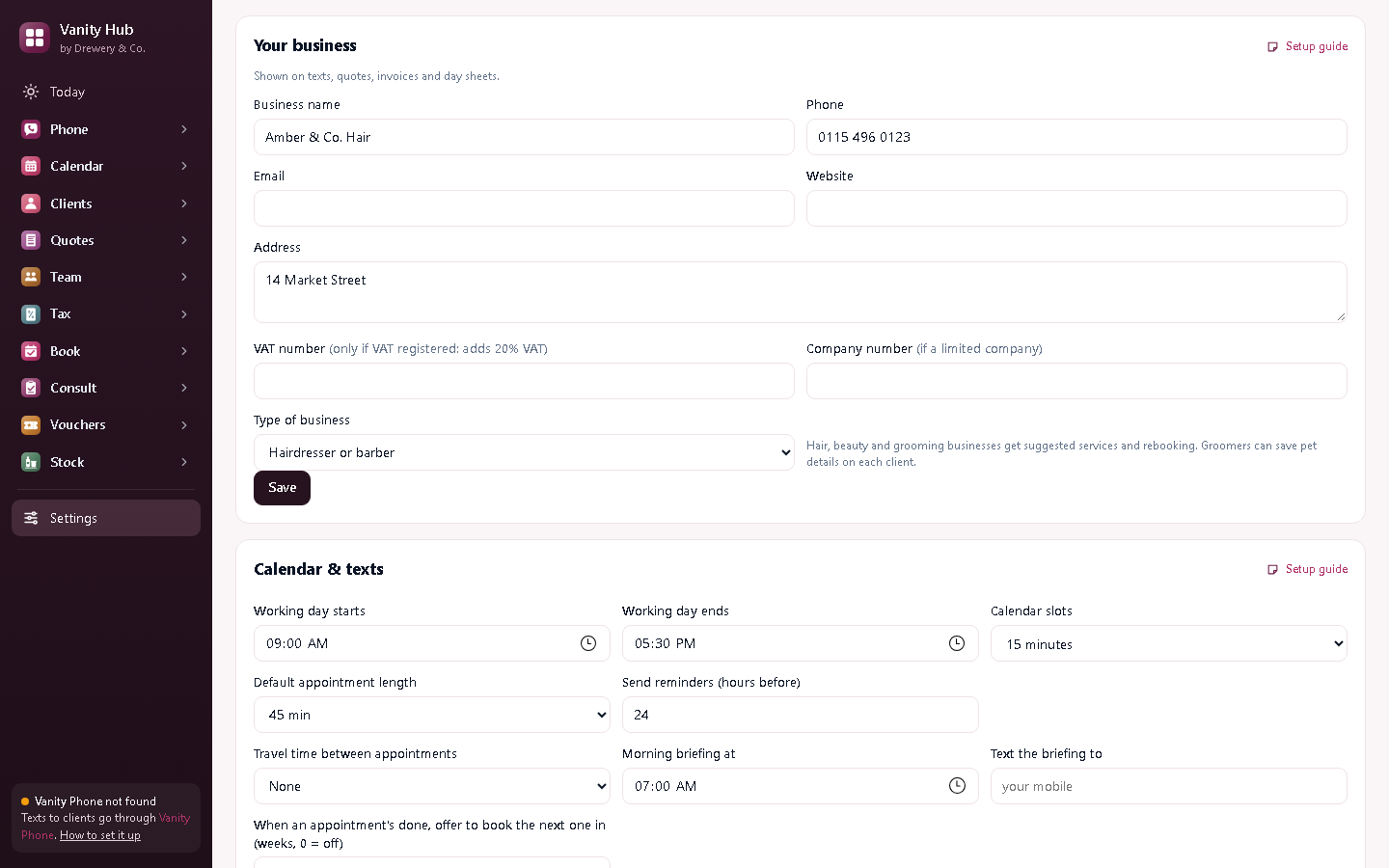
- Open Settings (bottom of the menu on the left).
- Under Your business, add your business name, phone, email, address and website. Add your VAT number and company number only if you have them.
- Press Save.
These go on your texts, quotes and invoices, and every Vanity app on the computer shares them.
#Set up quotes, invoices and your bank details
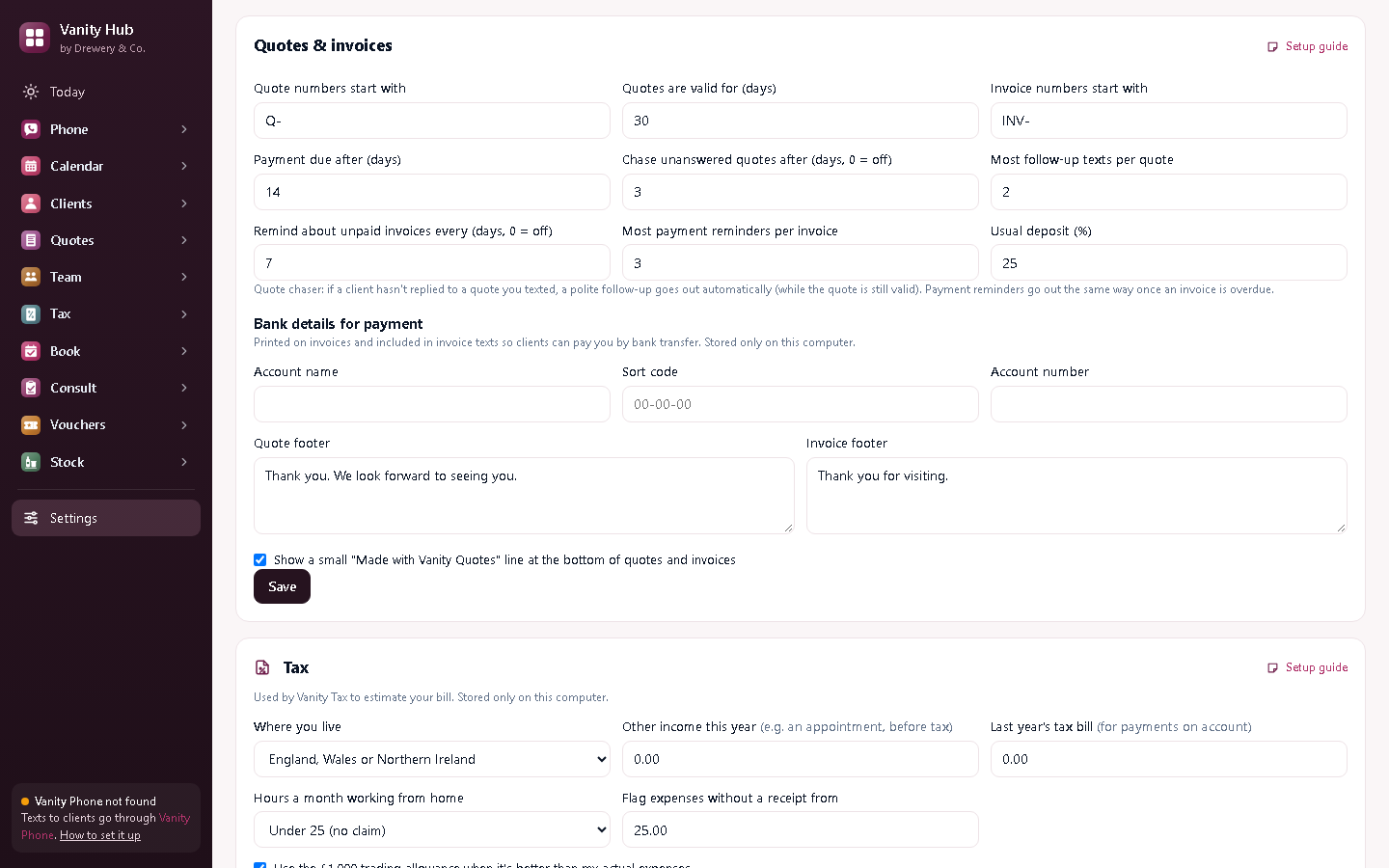
In Settings → Quotes & invoices:
- Quote numbers / Invoice numbers start with: for example Q- and INV-.
- Quotes are valid for and Payment due after: in days.
- Chase unanswered quotes after and Most follow-up texts per quote: the quote chaser. 3 days and 2 texts is a good start.
- Remind about unpaid invoices every and Most payment reminders.
- Usual deposit (%), for deposit invoices.
- Bank details for payment: your account name, sort code and account number. They're printed on every invoice.
Press Save.
#Build your price list
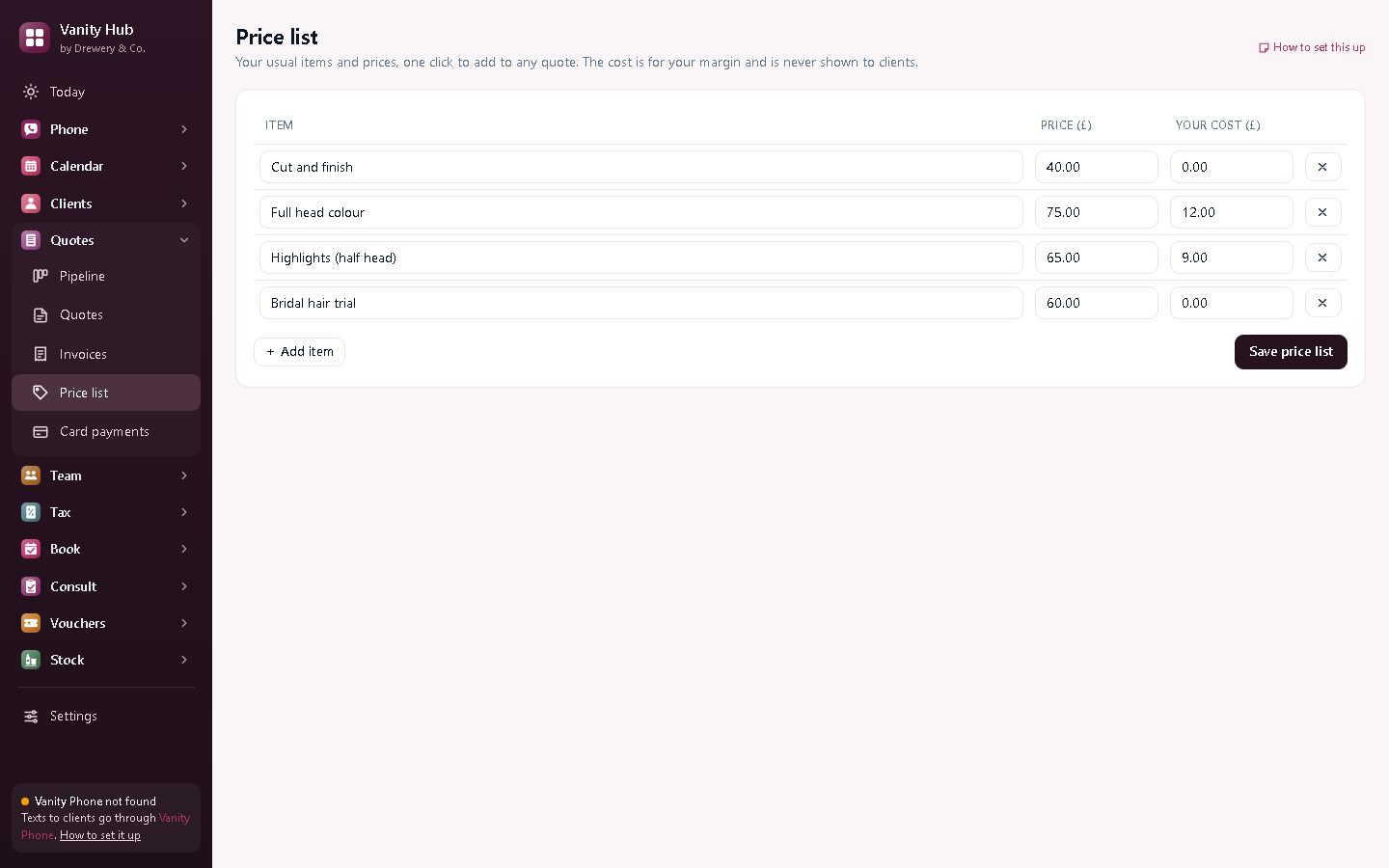
Open Price list and add the things you charge for: your services, treatments and the products you sell. Add your cost for each, and Vanity Quotes shows the profit on every quote. You only do this once.
#Write your first quote
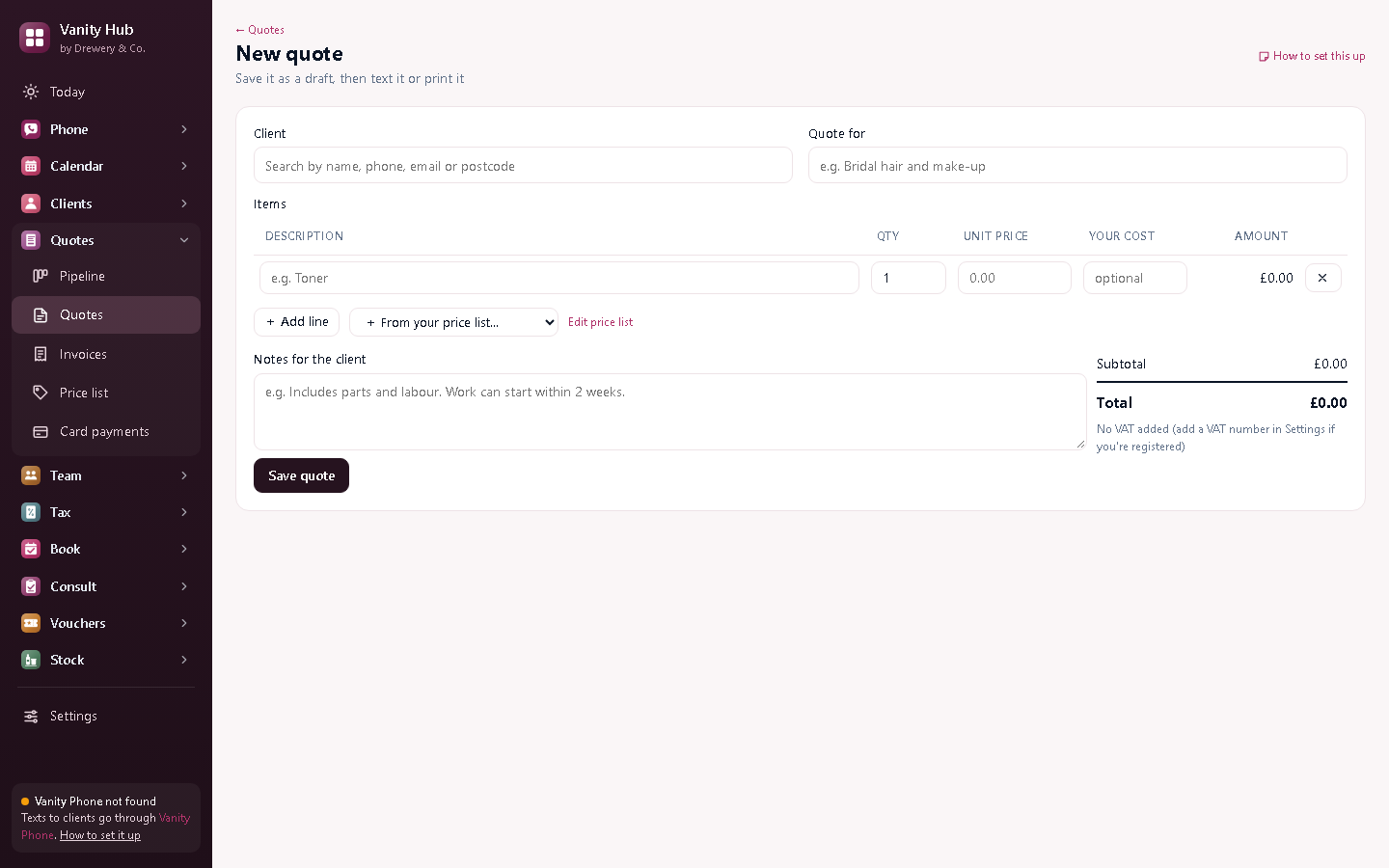
- Press + New quote and choose the client.
- Add lines with From your price list, or type your own. Fill in Your cost to see the profit.
- Check the total and your profit (only you see it), add notes, and save.
- Press Text to client (needs Vanity Phone) or PDF / print to email or print it.
#Connect Vanity Phone for texts
Quotes and follow-ups are sent as texts through Vanity Phone, from your business number. Install and set up Vanity Phone on the same computer (see the Vanity Phone guide) and keep it running: it sits by the clock.
The bottom-left of the window shows Vanity Phone connected when it's working. Without Vanity Phone, everything else still works, it just doesn't text.
#Track quotes in the pipeline
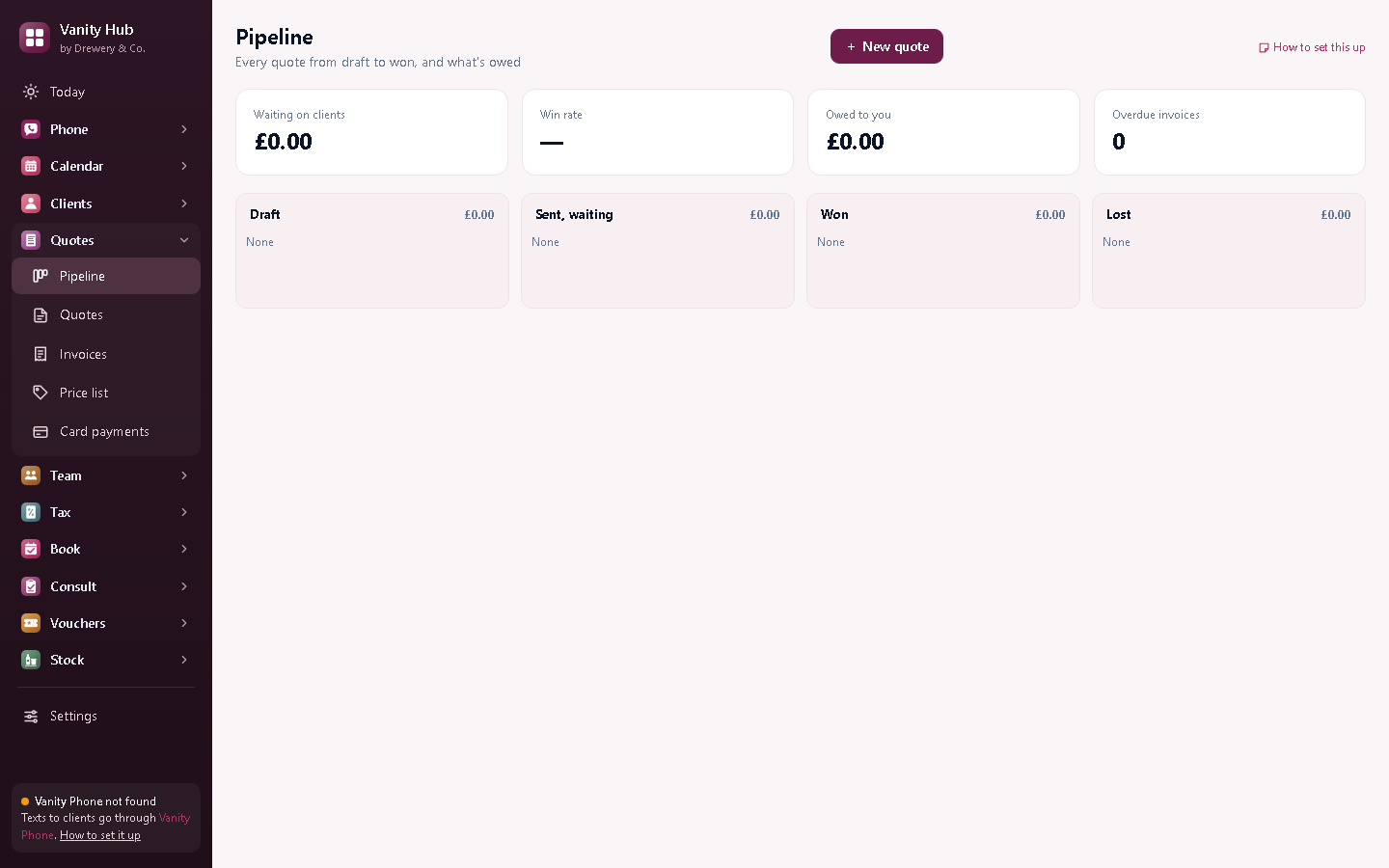
The Pipeline shows every quote by stage: sent, accepted, declined. The chaser follows up quotes that go quiet by itself. When a client says yes, open the quote and press Accepted, then Deposit invoice or invoice the appointment.
#Get paid
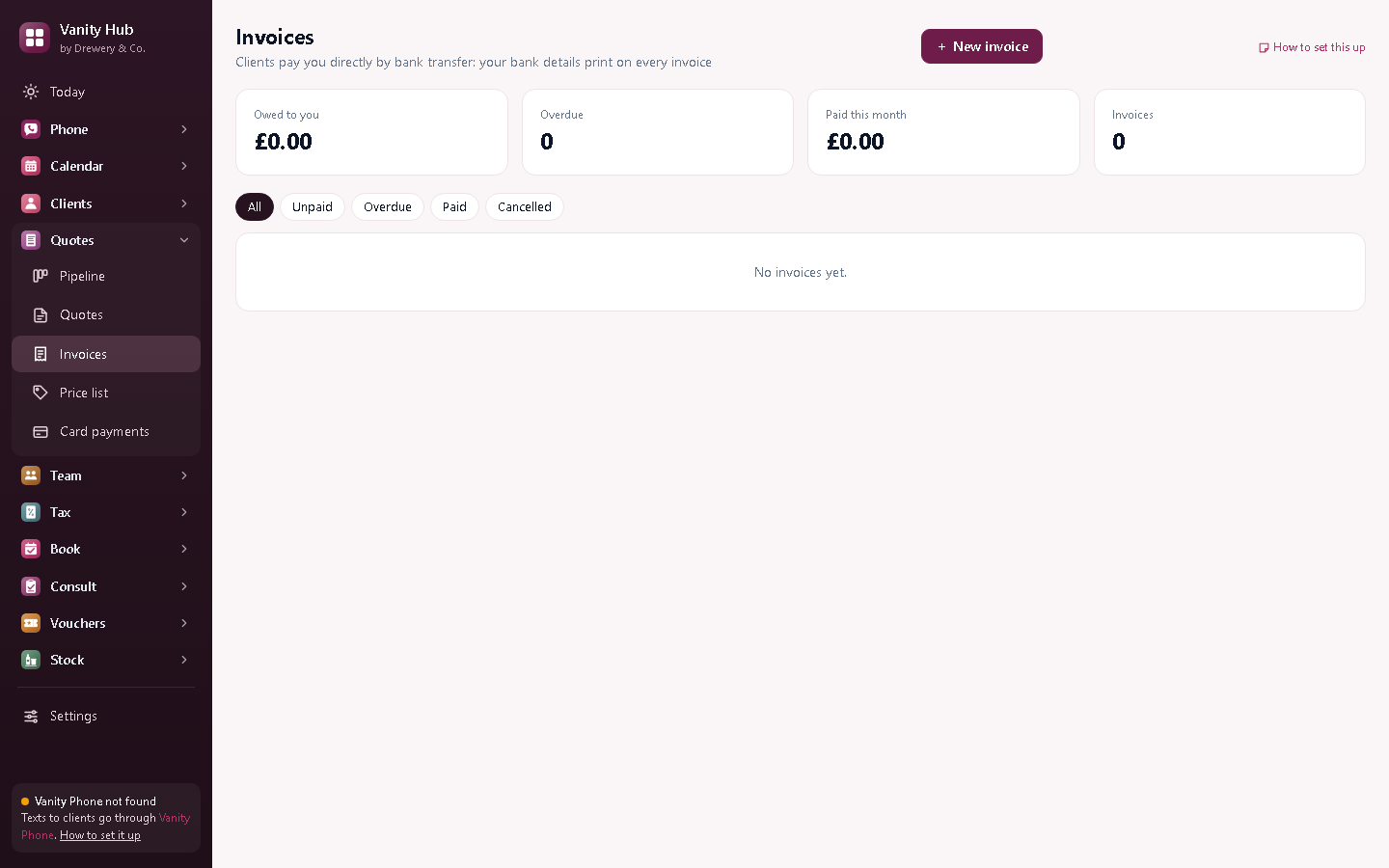
Invoices shows what you're owed. Clients pay by bank transfer using the invoice number. Overdue invoices get polite reminders automatically. Mark an invoice paid when the money arrives.
Need a hand?
Email help@dreweryco.uk or use the contact form, and we'll talk you through it.