

How to set up Vanity Team
Vanity Team keeps your employees, their appointments, hours, holidays and qualifications in one place, and texts everyone tomorrow's day sheet each evening.
#Download and install
- Go to dreweryco.uk/downloads and press Download under Vanity Team.
- Open the file you downloaded (Vanity-Team-Setup) and follow the installer. It takes under a minute.
- If Windows shows "Windows protected your PC", press More info, then Run anyway. This appears for new apps that Windows hasn't seen many times yet.
- Vanity Team opens when it's installed, and adds a shortcut to your Start menu and desktop.
You need a Windows 10 or 11 PC. Your data stays on that computer.
#Add your licence key
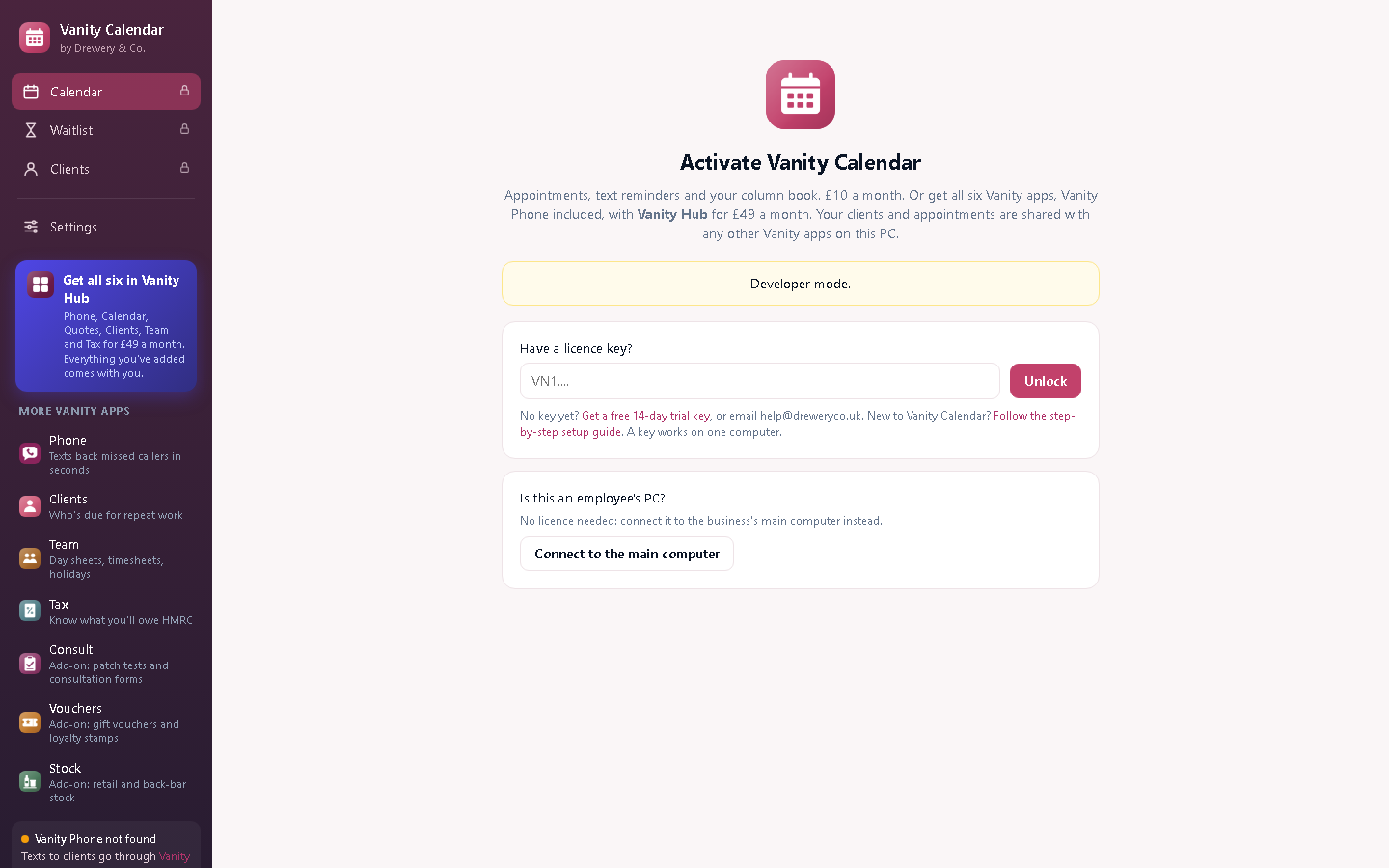
Vanity Team opens on the Activate screen until it has a key.
- Don't have a key yet? Ask for a free 14-day trial, or request a licence. Your key arrives by email.
- Copy the whole key from the email (it starts with VN1.) and paste it into Have a licence key?
- Press Unlock. The computer needs to be online the first time.
Each key works on one computer. Your team can still use it from their own PCs and phones: see Team access. When you renew, the key stays the same and the app updates itself.
#Fill in your business details
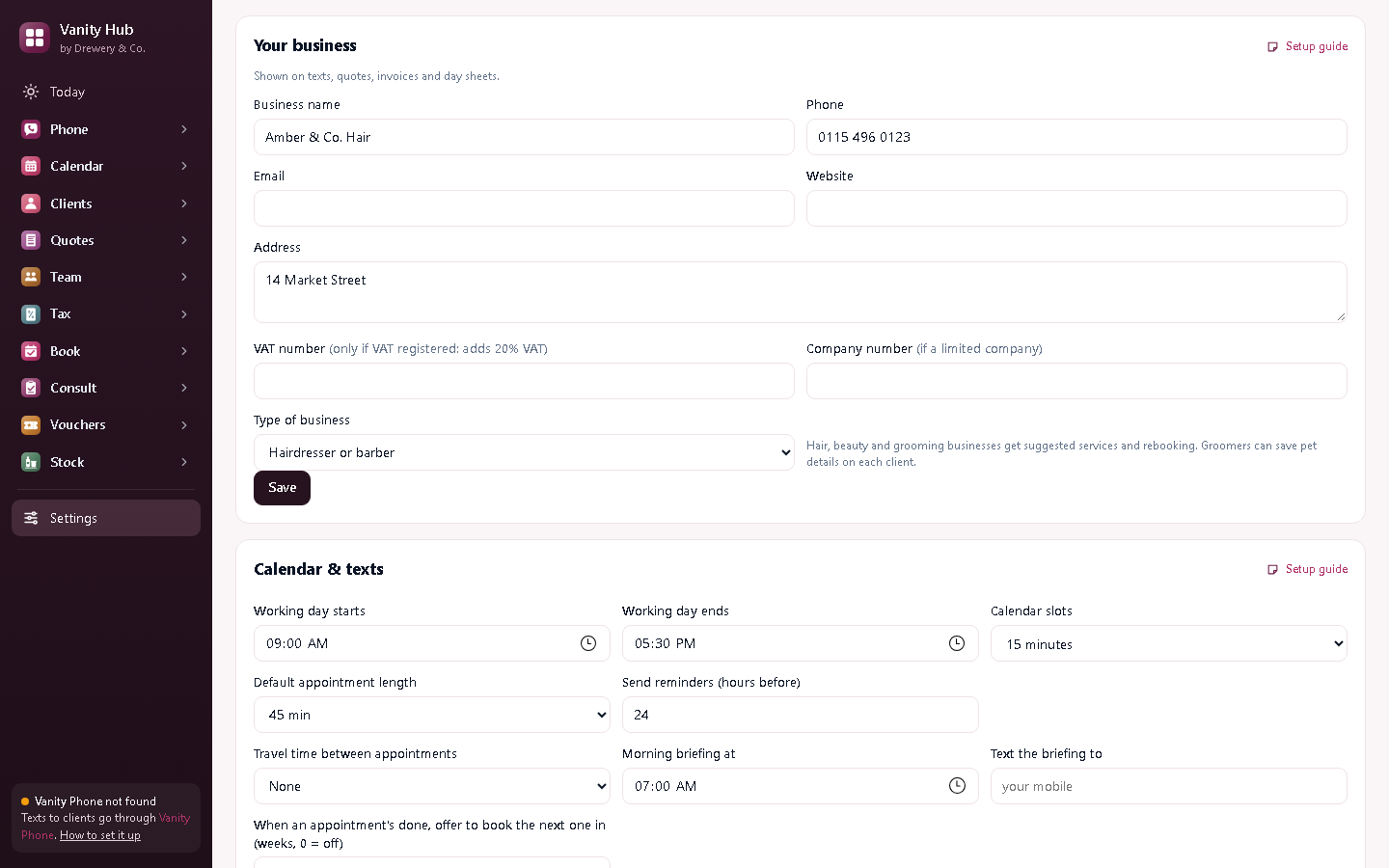
- Open Settings (bottom of the menu on the left).
- Under Your business, add your business name, phone, email, address and website. Add your VAT number and company number only if you have them.
- Press Save.
These go on your texts, quotes and invoices, and every Vanity app on the computer shares them.
#Add your employees
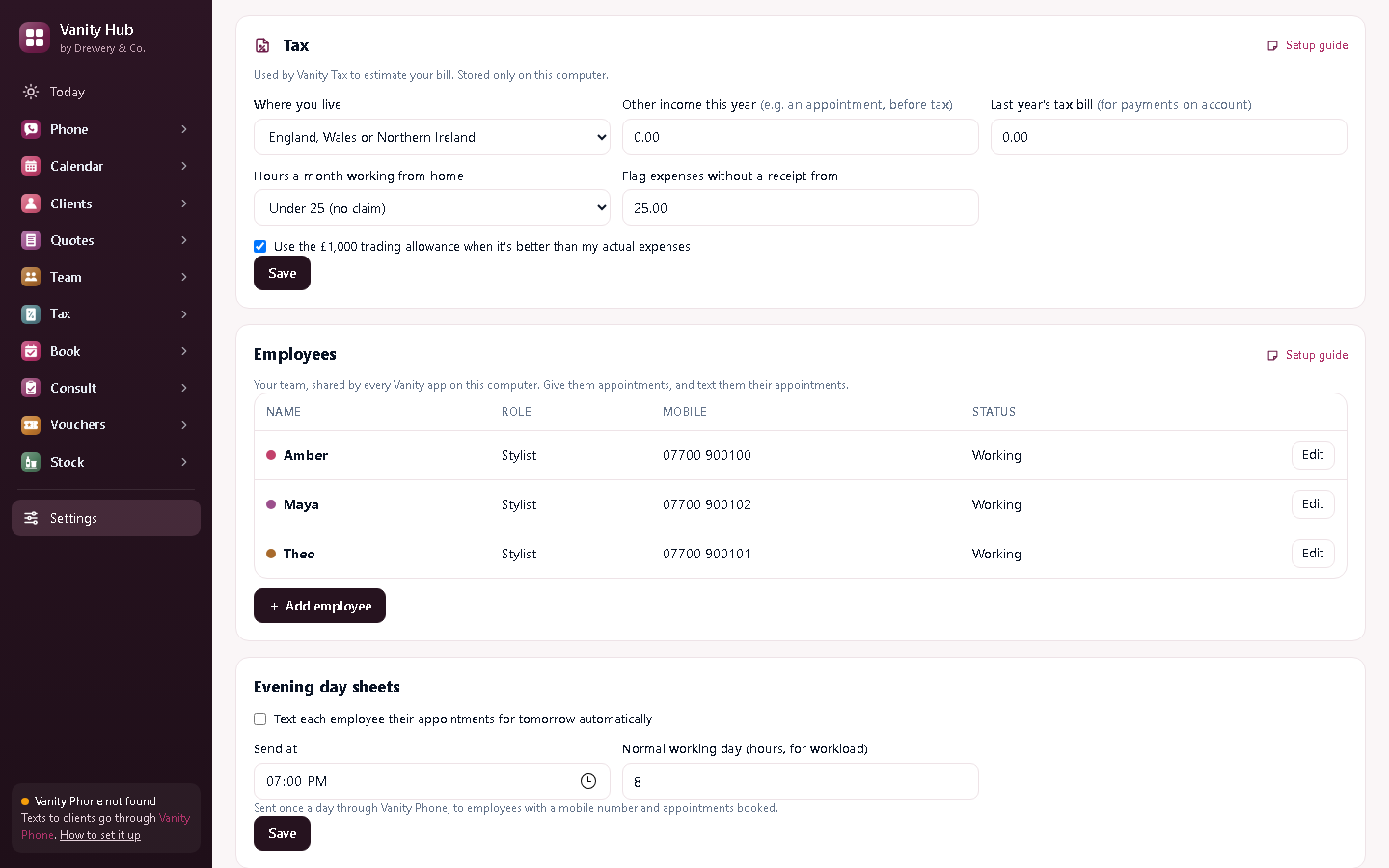
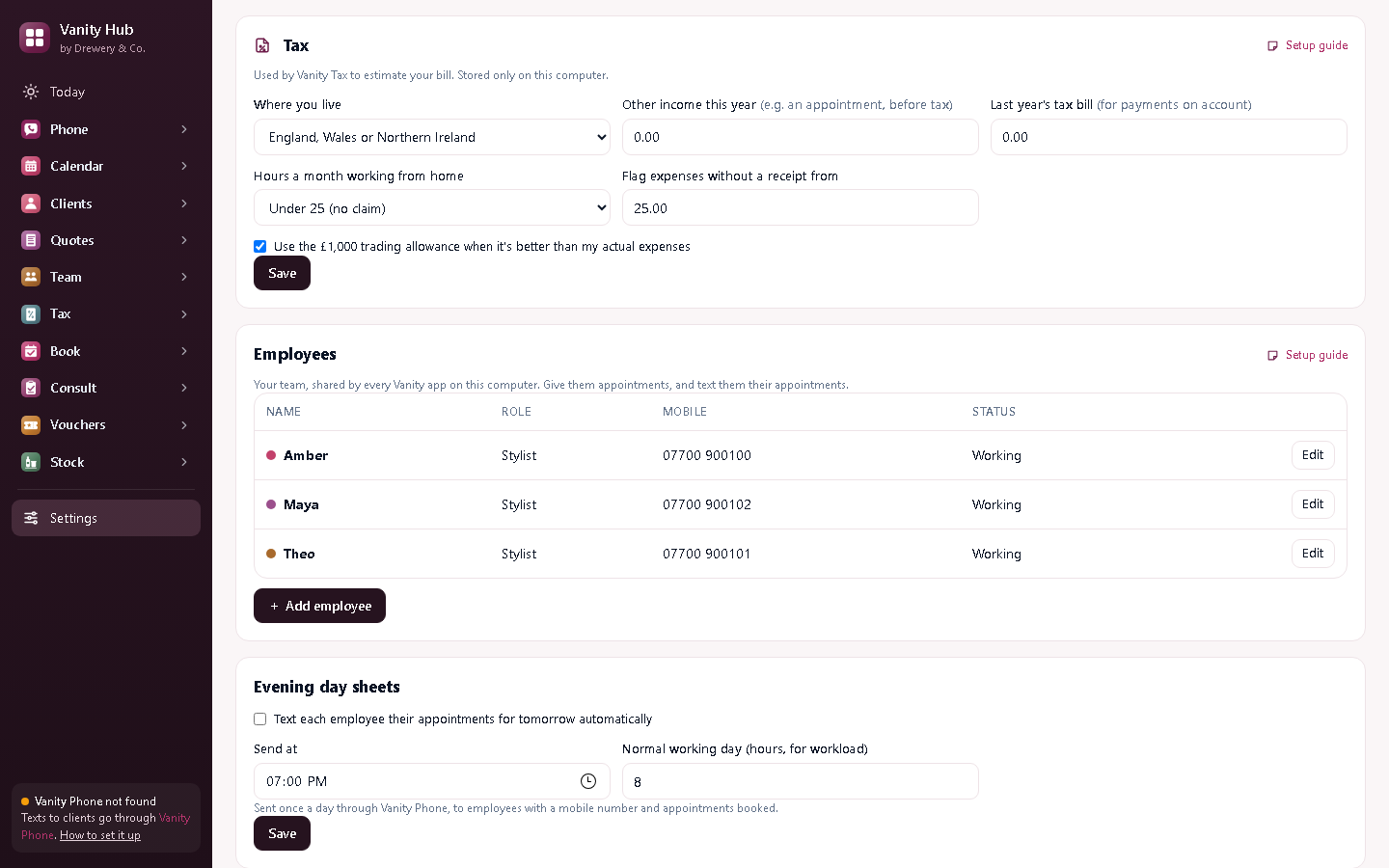
In Settings → Employees, press + Add employee and add each person's name, role and mobile number.
#Give out the appointments
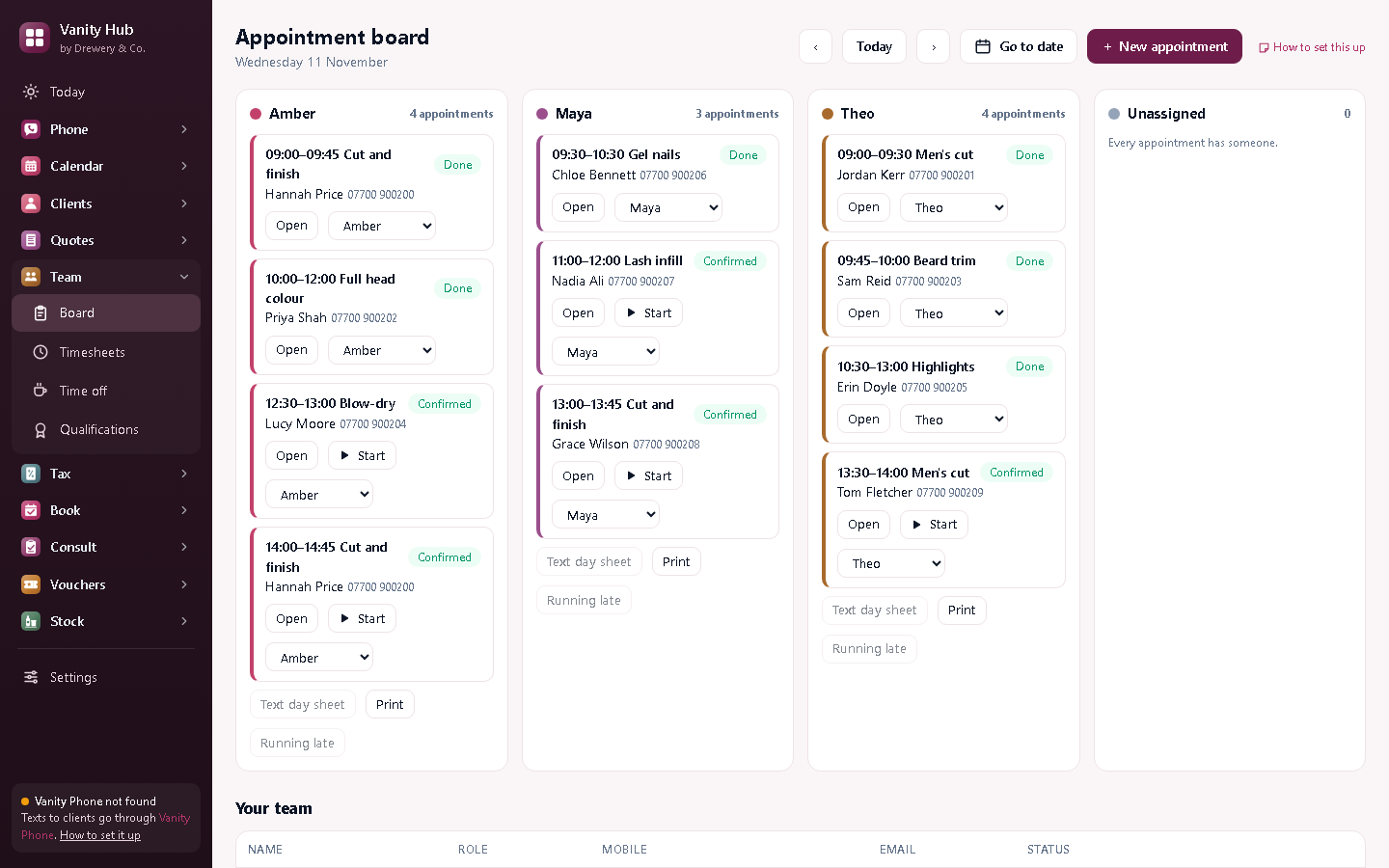
When you make an appointment, choose who's doing it. The Team screen shows everyone's day at a glance.
#Turn on evening day sheets
In Settings → Evening day sheets, tick Text each employee their appointments for tomorrow automatically and choose the time. It's sent through Vanity Phone to everyone with a mobile number and appointments booked.
#Timesheets, time off and qualifications
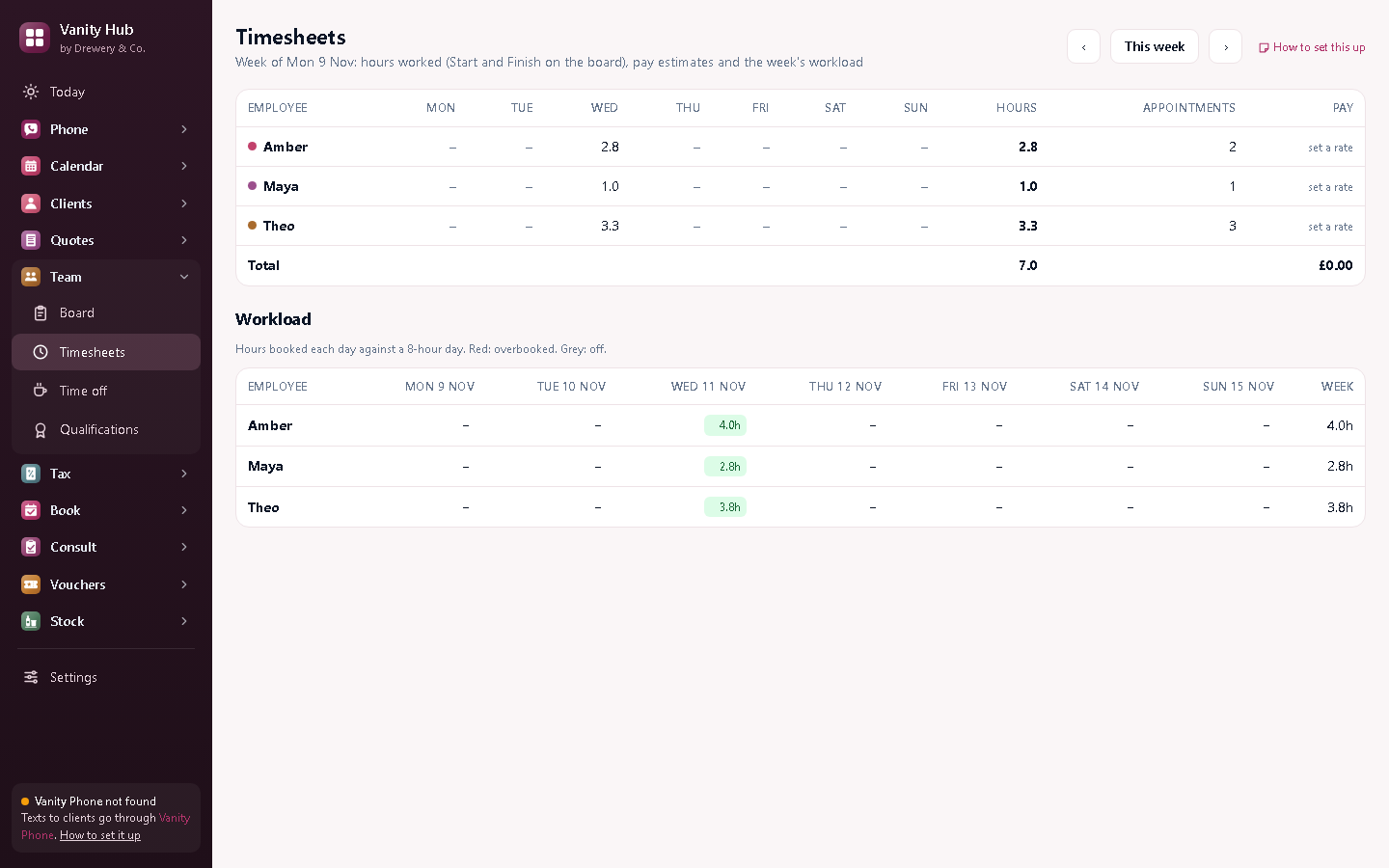
Timesheets keeps everyone's hours, Time off their holidays, and Qualifications warns you before certificates (like NVQs and insurance) expire.
#Team access: employees on their own PCs and phones
Your licence stays on your main computer, and so does all your data. Your team connect to it over your own Wi-Fi or network.
- On the main computer, in Settings → Team access, tick Let employees connect from their own devices.
- Press Set PIN for each person, and choose what they see: their appointments only, or the whole office.
- On an employee's PC: install the same app, and on the Activate screen choose Connect to the main computer. No licence needed.
- On a phone: open the web address shown in Team access, in the phone's browser, while on the same Wi-Fi.
Each person signs in with their PIN.
Need a hand?
Email help@dreweryco.uk or use the contact form, and we'll talk you through it.